


Партнерка на США и Канаду по недвижимости, выплаты в крипто
- 30% recurring commission
- Выплаты в USDT
- Вывод каждую неделю
- Комиссия до 5 лет за каждого referral
№ 3. Электронные инструменты
в обучении английскому языку:
Mind 42, Telescopic
Данный документ представляет собой третью часть материалов, посвящённых использованию электронных инструментов в обучении английскому языку.
Здесь Вы найдёте информацию, как использовать графические схемы связей (mind-maps) для введения новой темы или расширения используемой тематики. Подробно представлены этапы, как это сделать сначала, с помощью компьютерной программы, и затем продолжать использовать в классе.
Если Вы постоянно будете использовать этот инструмент в классе, то заметите, как он развивает логическое мышление студентов, умение структурировать идеи и развивает говорение, так как является опорой и кратким содержанием высказывания.
Ещё один инструмент, описанный здесь, это telescopic text, который помогает почувствовать структуру английского предложения и текста в целом. Инструмент направлен на работу со словами, организацию их в предложения, абзацы. Работа построена в качестве игры и даёт возможность поэкспериментировать с новыми словами и поупражняться в создании необычных предложений.
Мы надеемся, что эти инструменты помогут сделать развитие продуктивных речевых навыков Ваших учащихся интересным и лёгким.
Mind42

Mind42 (www. mind42.com) is a web application where you can create Mind Maps and share them with others. It is a very convenient way to manage your ideas, to add them more logics, pictures or colours.
Who can use it? Teachers, students, working groups. You can be face to face with your Mind Map or share it with the others, whatever you prefer.
What can we use it for? Mind Map is a universal tool to organize ideas. It can be used as a visual while explaining grammar or introducing new topic. It is especially applicable for collaboration as helps all the participants stay updated. Editing Mind Maps during in-class brain storming can also be a good idea as it securely stores all the ideas.
Where can we use it? This time you can literally use it everywhere. You can demonstrate your Mind Map from the Internet using the application or you can save it on your computer and work with a simple image. So, this time you have no Internet boundaries.
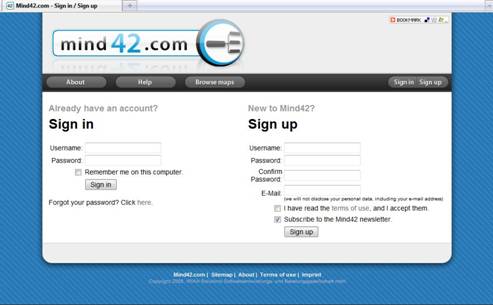
How can I use it? To start using the application you need to register or to sign up. Use any e-mail address you like.
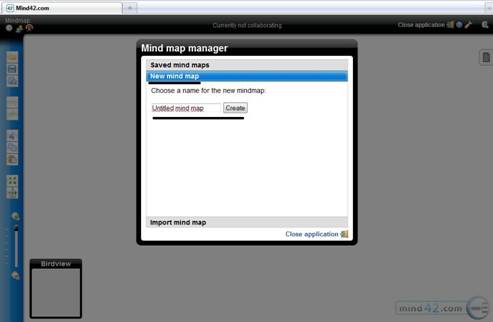
The application runs automatically as you enter the system and offers you several options on your choice: work with your Saved Mind Maps, create New Mind Map and Import Mind Map. If it is the first time you work with Mind42 you definitely need New Mind Map option. Choose it and name your Mind Map, click Create button afterwards. Remember that the name will be the first central section of your map.
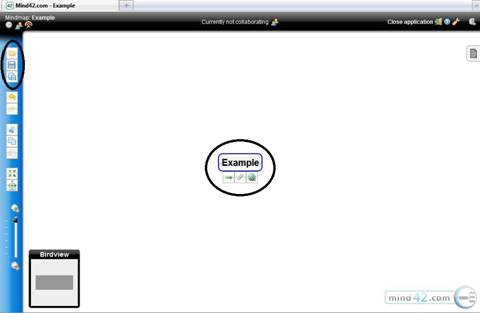
Now you can go on creating your Mind Map. The application shows you all the range of options, one option – one icon. On the left of the page you have you Save options, in the middle of the page you can see the heart of your Mind Map. You can add more branches to it using Pointer icon, add a link with Globe icon or play with applications with Clip icon.
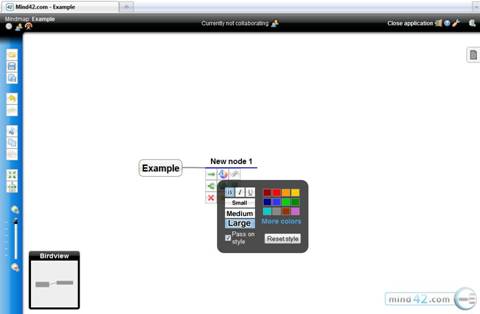
You have even more icons for branches. One of most fun is Font icon (with the scale), here you can customize the note view using different fonts and the way, Red Cross icon is there in case you don’t like the result or changed you mind. It deletes the branch from your Mind Map.
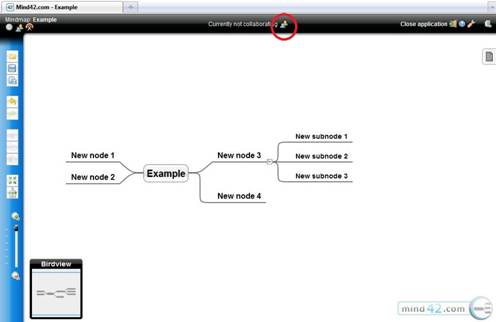
When you are satisfied with your Mind Map you can share it or invite people to collaborate with you. Look on the top of the page and see your current collaboration status and people icon. You need to click it.
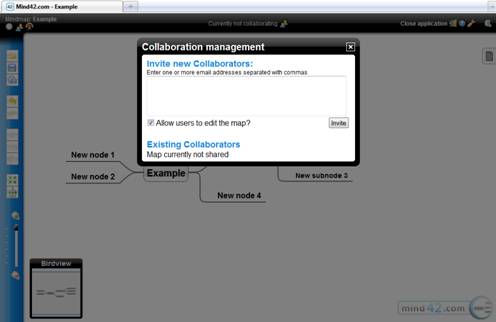
Now you can invite more users and decide if they are allowed to edit you Mind Map. Enter their e-males and click Invite Button so that they get invitations to share your Mind Map.
Now you know how to create and share Mind Maps. Use this tool for your teaching or everyday life and you will see how it becomes more organized.
 TelescopicText
TelescopicText (www. telescopictext. org) is a tool which helps you to create an expanding text.
Who can use it? Anyone, who finds it useful or fun, and has an Internet access: teachers, students, colleagues.
What can we use it for? Expanding text can become a really good tool to help your students broaden their sentences and understand language structure. You can even practice word order with TelescopicTexts.
Where can we use it? Use Telescopic texts room home to create some language samples, use them in a class as a fun practice or give your students a set of words and ask them to create telescopic text with them to practice both lexis and language organization.
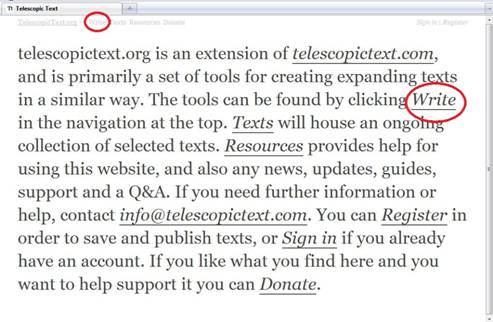
How can I use it? You don’t have to register to create your Telescopic text (you have to do it to save it though). Just click Write on the top or in the middle of the homepage to begin.
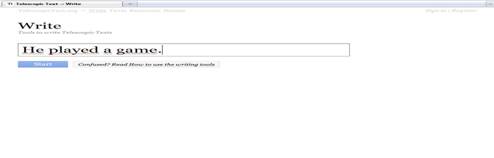
Now print in the initial sentence and press Start button to begin.
Now highlight the word you would like to insert text to and click it. Pay attention to the hints the tool gives you. Use them if you need to.
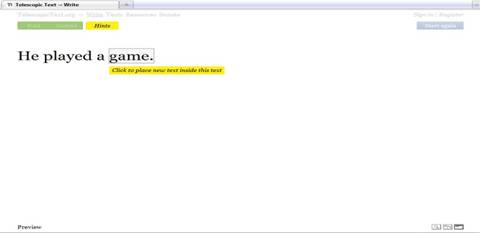
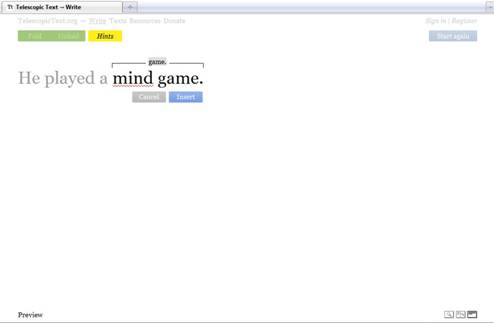
Now insert the expanding text on your choice and press Insert button.
Press Fold button and see your Telescopic text. The words you added to expand the text are highlighted with grey now.
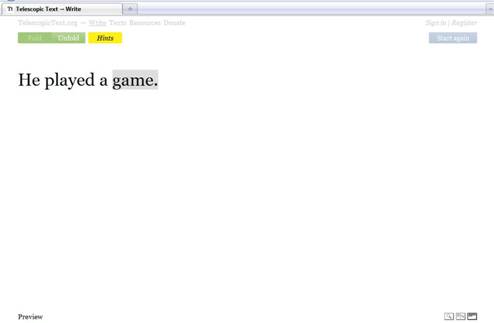
Click the highlighted word to see what happens.
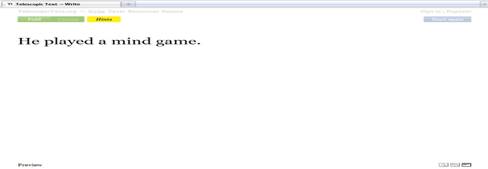
Go on creating expanded text till you are satisfied with the result or run out of words.
