

Партнерка на США и Канаду по недвижимости, выплаты в крипто
- 30% recurring commission
- Выплаты в USDT
- Вывод каждую неделю
- Комиссия до 5 лет за каждого referral
User Manual
For
Online Consent Management & Monitoring System
|

Index
1. Introduction ………………………………………………………. 02
2. Online Industry Registration ……………………………………... 04
3. Login Process …………………………………………………….. 07
4. Features of Industry User ………………………………………… 12
5. Consent Management …………………………………………….. 13
INTRODUCTION
Online Consent Management & Monitoring System is a web based application for Consent Management developed for the SPCB (State Pollution Control Board), Ministry of Environment & Forest.
Application is divided in to the two parts as given below.
1. APPCB User
2. Industry User
Consent Management includes:
· Issue of “Consents For Establish” and “Consents For Operate” in respects of industries, mining projects etc.
· Assessment and monitoring the quality of water, ambient air and stack emissions
· Inspection of sites proposed for setting up of industries to verify the suitability of the same from environmental point of view
· Ambient air quality monitoring under National Air Monitoring Program (NAMP)
· Offering guidance to industries and local bodies on statutory provisions
· Inspection of industries for effective monitoring and evaluation
Features of OCMMS
· Unified Global online application/ portal
· Role based application access
· Multi level Security Enabled System
· Online Industry Registration
· Online Submission of Application, Approval, Clarification and other activities for CFE, CFO for all category of Industries/Institutions
· Consent Management
· Laboratory Management
· Waste Management
· Reports
Online Industry Registration
Industry registration is an online feature; which will enable Industry applicant to register himself online to use the application for applying for Consents (CFE/CFO), Authorization and other features. Using this Industry will be able to generate the temporary user name and password; which he needs to use within the stipulated time. Once Industry uses the temporary user name and password for Consent Application; documents/details provided with this will be validated and user name will be confirmed and made available to him for future use.
If Industry fails to use the temporary user name within the given time frame, then this user name will be deleted from the database and applicant will have to re-register himself to use the online application.
Steps to use this feature:
ь User opens the URL in browser.
ь Click “New Registration”
ь New Registration form will be displayed.
ь User fills the asked information and click “Submit”.
ь Once submitted, System will validate the input data.
ь If data is incorrect or mandatory filled not filled then system will prompt user to correct the information.
ь If data filled by applicant is correct then System will generate Temporary user name and password and will be displayed on screen.
ь Process of N
ь New Industry Registration is given below.
Ш Open Home Page by entering URL in Browser.
 |


Screen Shot: Home Page
Ш Click on New Industry Registration link on Home Page.


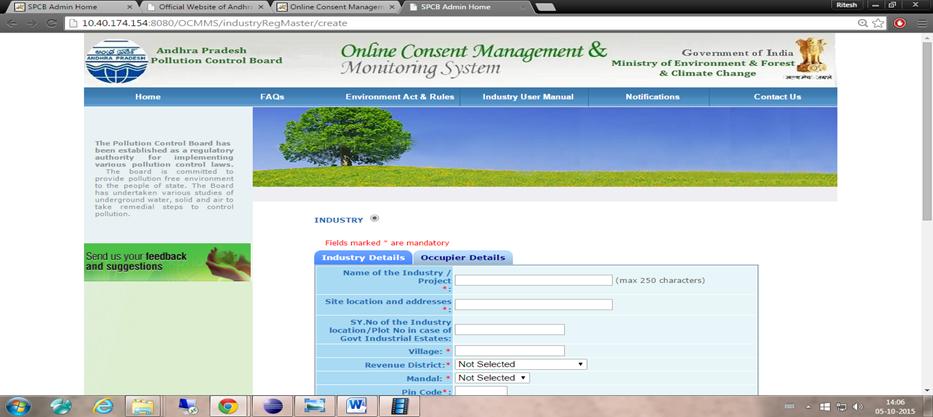
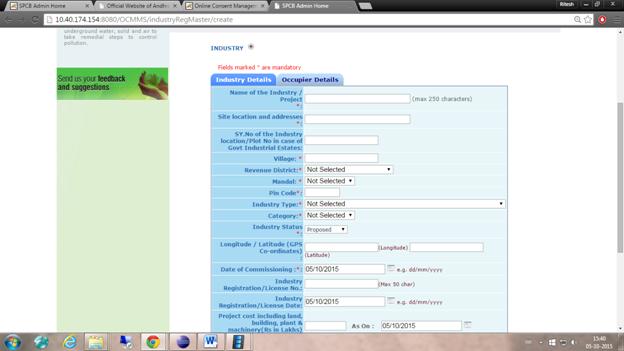
Screen Shot: Industry Registration Window
Ш After filling the mandatory Industry Details and Occupier Details, save it.
Ш It gives User ID and Temporary Password.
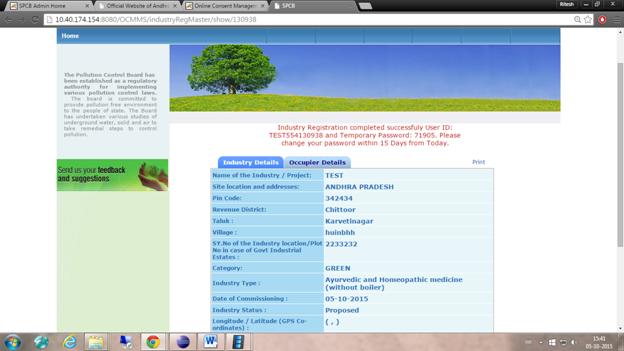
Screen Shot: Industry Registration Window
3. Login Process
Ш When you are login as Industry User with this User ID and Password, firstly it gives change password page as shown below.


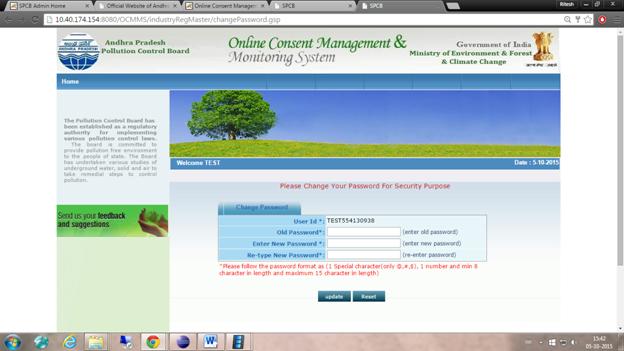
Screen Shot: Change Password Window
Ш Enter system generated password in old password.
Ш Enter the new password of minimum 8 characters size having at least 1 character, 1 digit and 1 special character (@, #, $ only).
Ш Password should not be a last 5 password.
Ш After changing password successfully, you can login in to OCMMS by selecting radio button Industry and entering user id, password and Captcha code.
Ш Maximum 3 times you can enter wrong password, after that your account locks.
Ш Only way to unlock it is doing forget password.
Steps for doing forget password
i. Click on Forget Password link on Homepage.
ii. Click on Industry User
iii. Enter User ID and then click on submit.
iv. Enter Hint Answer of Hint question and then click on submit.
v. After entering correct password it gives password change page, Enter new password and confirm it same.
vi. Then you created a new Password.




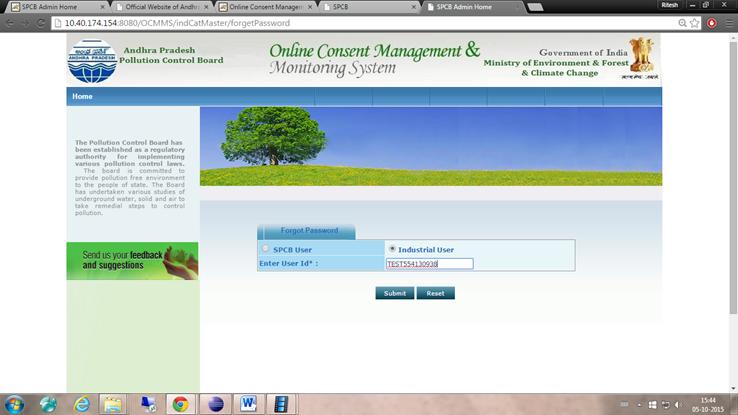
Screen Shot: Forget Password Window
After entering the User Name and click on submit Button then below window will appear:-




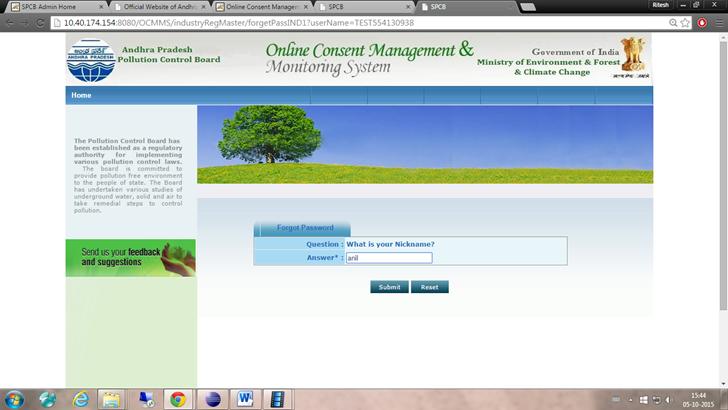
Screen Shot: Forget Password Window
Enter the Hint Answer and Click on Submit Button to reset the Password.




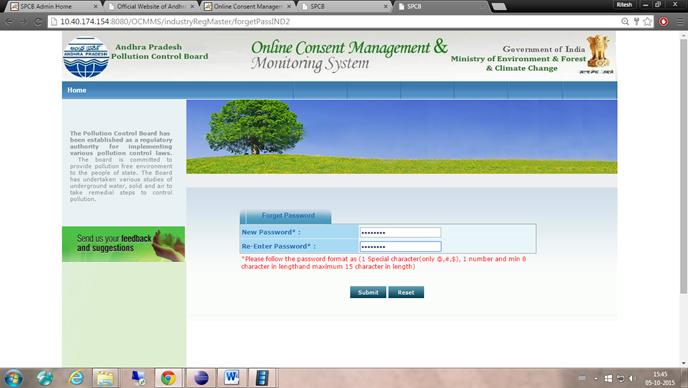
Screen Shot: Forget Password Window
4. Features of Industry User:
After Login, Industry User home page is given below.
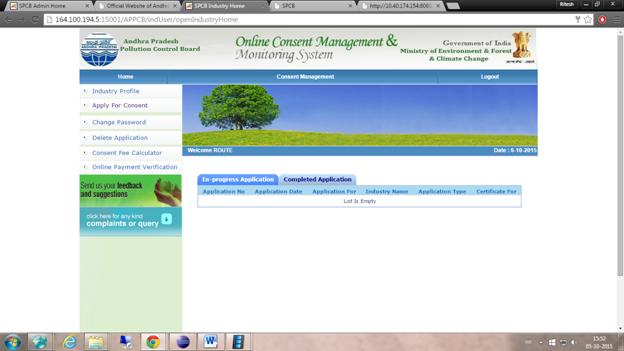
Screen Shot: Industry User Home Window
Modules for Industry User
· Consent Management
§ Apply For Consent
§ Industry Profile
§ Change Password
§ Delete Application
§ Consent Fee Calculator
§ Online Payment Verification
5. Consent Management


Screen Shot: Consent Management Window
After clicking on Apply for Consent Below window will appear.
5.1. Apply For Consent



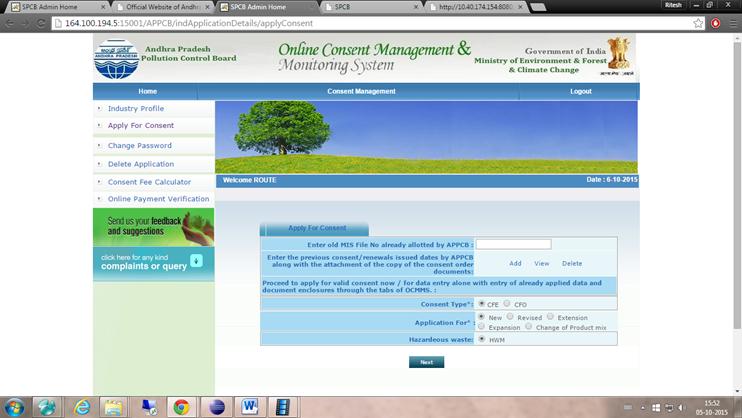
Screen Shot: Apply for Consent
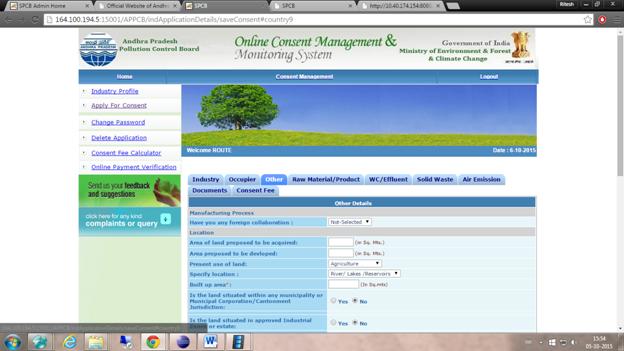
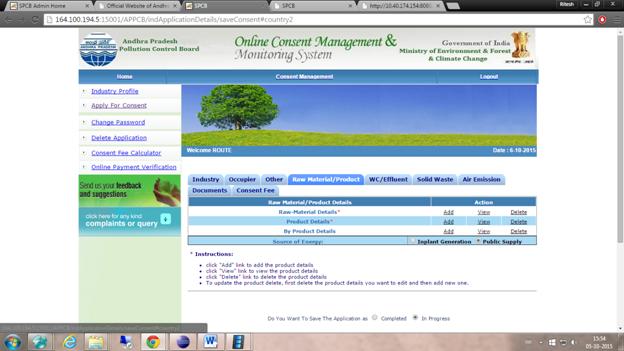
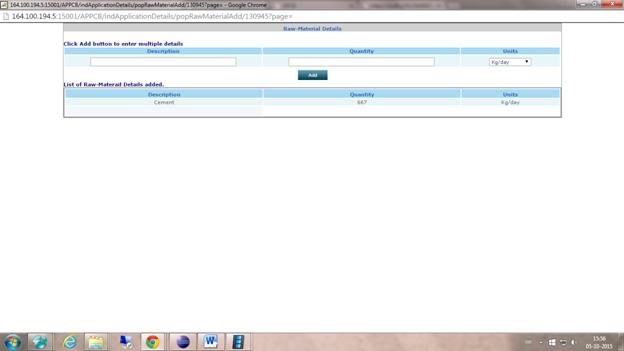
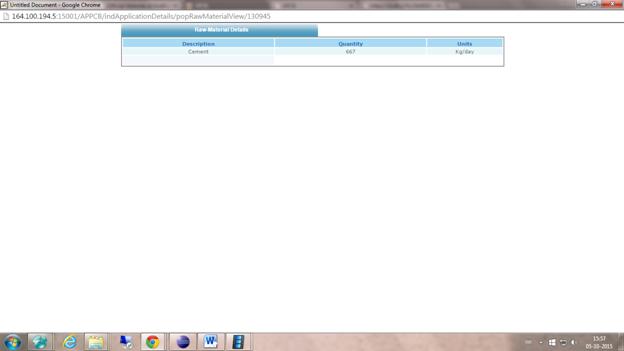
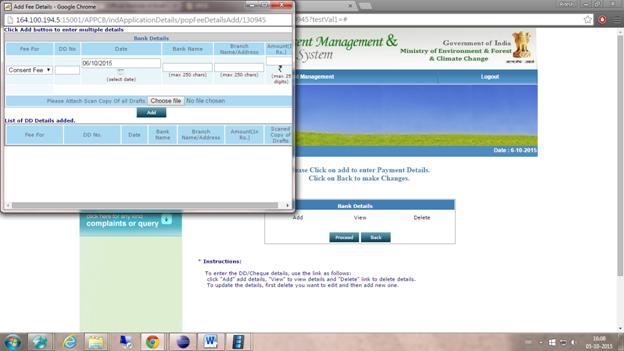
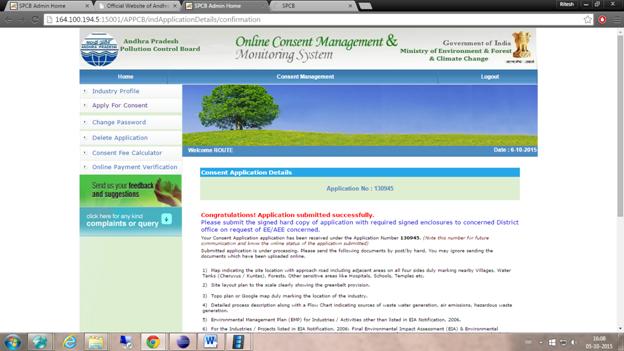
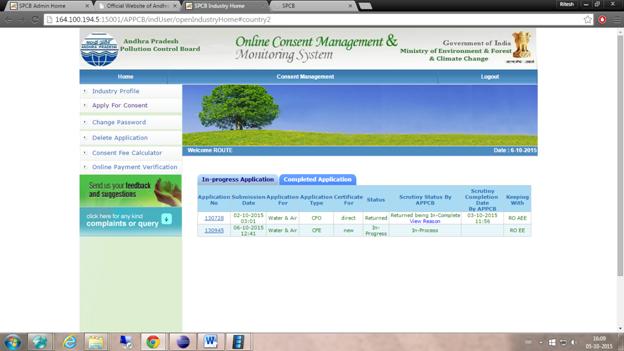
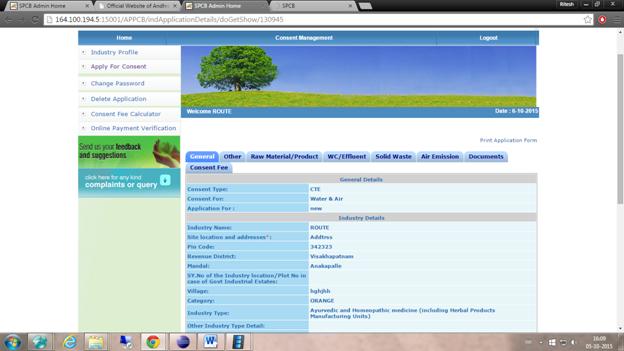
After consent application below window will appear.









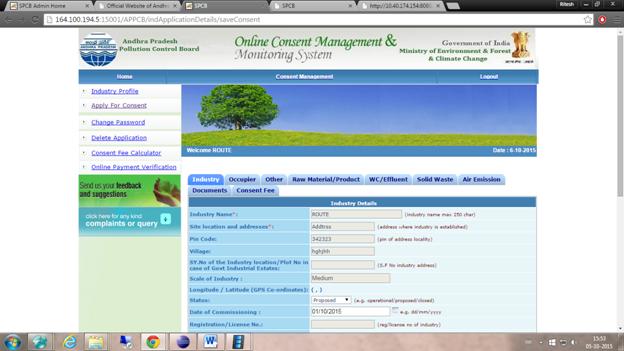
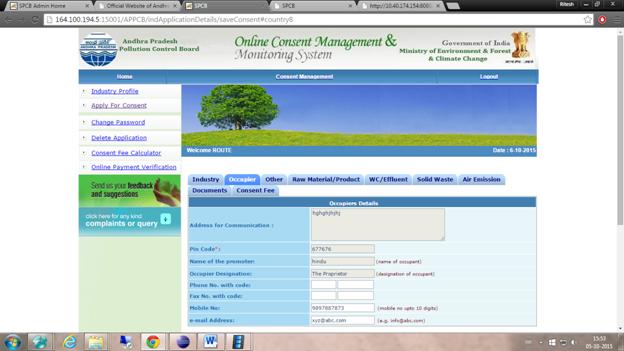
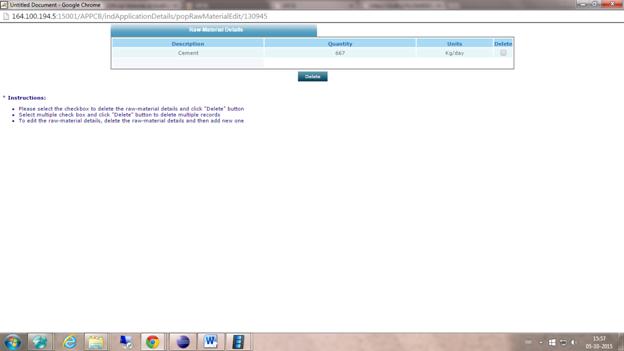
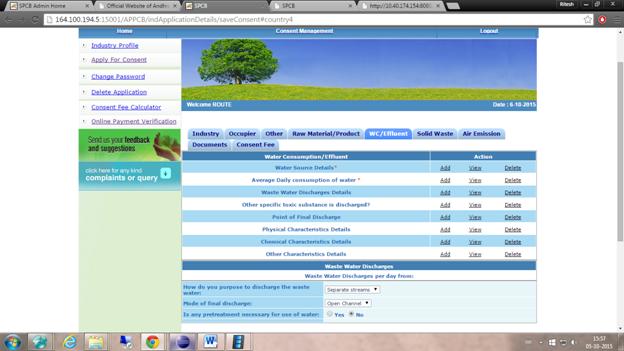
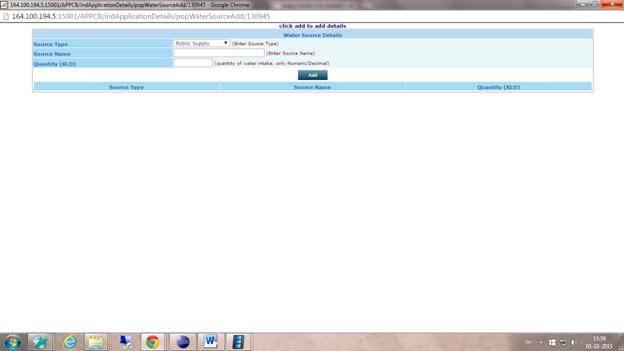
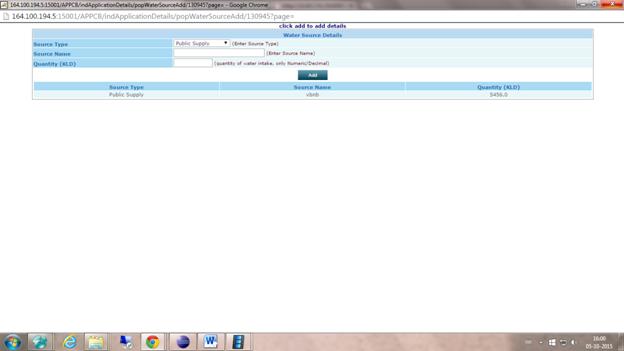
Screen Shot: Consent Application Window




Thank You!
