Партнерка на США и Канаду по недвижимости, выплаты в крипто
- 30% recurring commission
- Выплаты в USDT
- Вывод каждую неделю
- Комиссия до 5 лет за каждого referral
Online ICT MIS
Phase-III User Manual
Developed by:-
CSL Infomedia Pvt. Ltd, Jaipur
For Compucom Software Ltd.
Introduction
Online ICT MIS Phase-III is multi-layered web based online MIS system to manage & monitor operations in all the schools and also at central level. The Online ICT Phase-III fulfills the following requirements mentioned in requirement specification document these are as followed.
A) Computer Instructor Module: - This module includes some entry forms and report. As Create School Coordinator, Edit School Coordinator, Coordinator Attendance ,Coordinator Activity, and relevant report which reflect the result of all entry forms these are School Coordinator Report, School Coordinator Attendance report
B) Infrastructure Module: - This module cover all the Issues related to hardware and items issued to track uptime and downtime of the lab infrastructure (Desktop, Networking, Internet, UPS, Solar set etc.) Including fault logging mechanism and record of time taken for compliant.
C) Payment Module: - This module should also capture the Detail of Payment Made and Payment Receive record.
D) Feedback Module: - To Capture Feedback from students, teachers, DEO(S) etc.
E) Report Generation:-In this software it has Daily Report In this Report to able to generate weekly and monthly reports in this report has track the no of teachers and issue count and open issue and no of schools and school follow up count etc.
Online ICT MIS Phase-III is a web based MIS to manage operations in all schools and also at central level. The software has –
For School Login:-
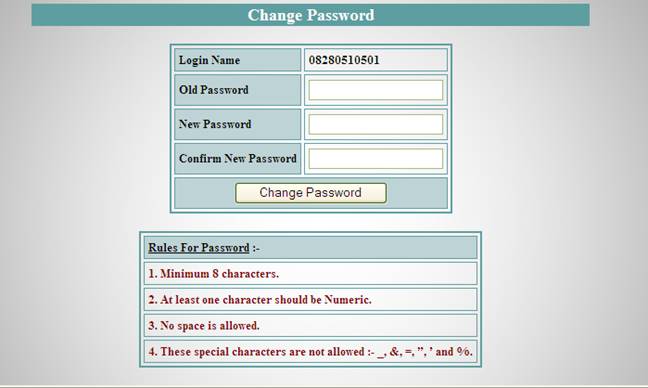
§ Change Password – In this, password can be changed from time to time
§ School & Infrastructure Module – This module includes School related Reports and Entry form With infrastructure Module that include issues related entry forms and Follow up for the Issues and their reports
§ School Staff Module - This module include Staff Entry form and Staff Member’s Reports
§ Student Information Module – This module includes complete student tracking like their details, attendances and feedback etc.
§ School Coordinator Information Module – It includes School Co-Coordinator details, their attendance and related reports like Activity Report.
§ Student Information Module – It includes Student related Entry form and Report for a Particular School.
§ Student Information Module – It includes Payment related Entry form and Report for at Block level.
§ Training & Feedback Module – This module have feedback questions related entry form and report and students feedback entry form and report.
§ Infrastructure Module –This module includes infrastructure report, issues related entry forms and Follow up for the Issues and their reports.
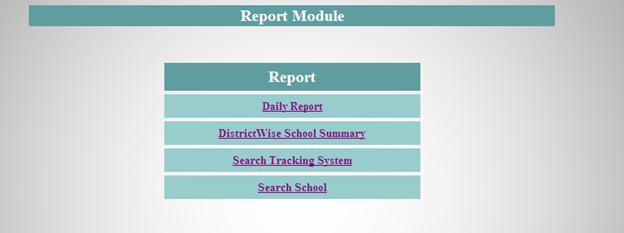
§ Report Module-This module includes different types of Report that show the overall performance of project and over all information of school, coordinator, students, issues and many more.
.
-----------------------------------------------------------------------------------------------------------------
Now we see how to use this software:-
1. First of all type http://203.129.200.135/OnlineICTMIS/ on your browser, you will get Online ICT MIS window.
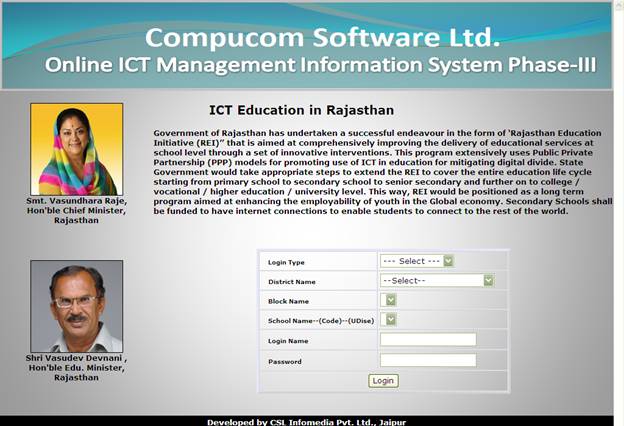
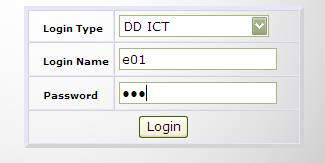
Types of Logins as below and Default Password is 123 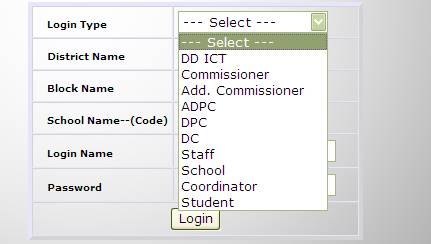
1. Admin : This login will be used by the Administrator only. It’s screen will look like as the screenshot.
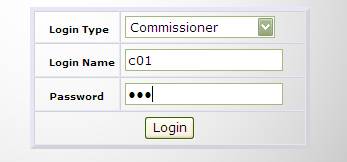
2. Commissioner : this login will be used for Admin level user (C01) . It’s screen will look like as the screenshot.
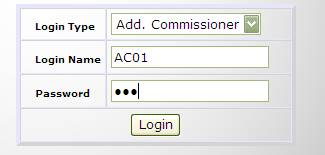
3. missioner : this login will be used for Admin level user (C01) . It’s screen will look like as the screenshot.
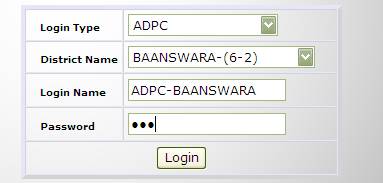
4. ADPC : this login will be used for District level user (ADPC) . It’s screen will look like as the screenshot.
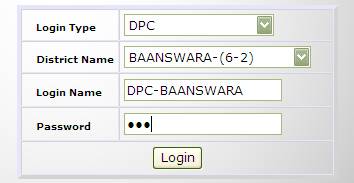
5. DPC : this login will be used for again for District level user (DPC) . It’s screen will look like as the screenshot.
6. DC :this login will be used also for District level user (DC) . It’s screen will look like 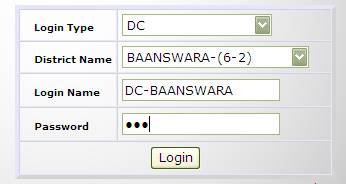
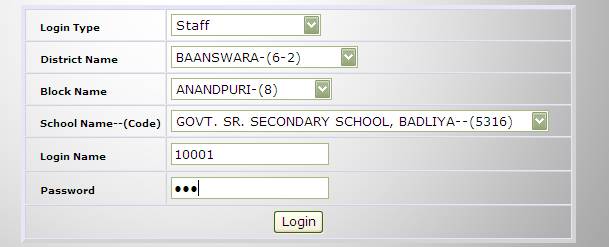
7. Staff: this login will be used by Staff at School leve user (School Staff) . It’s screen will look like as the screenshot
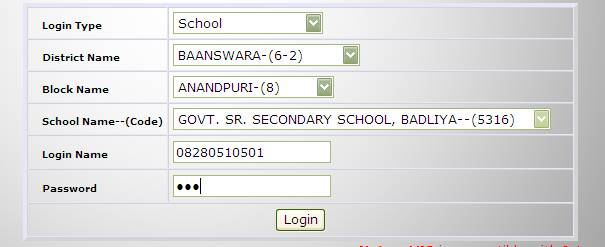
8. School : this login will be used default at School leve user. It’s screen will look like as the screenshot
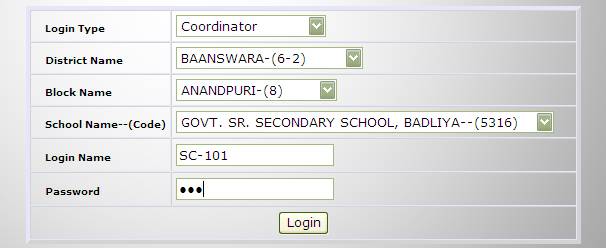
9. Coordinator: This login wil be used by the School coordinator he/she have to select it’s school and then need to enter it’s login name and password as mention in screenshot.
10. Student : This login wil be used by the student he/she have to select it’s school and then need to enter it’s login name and password as mention in screenshot.
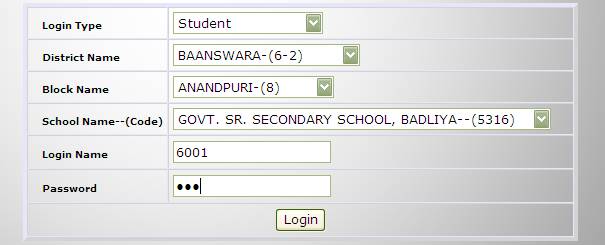
Note: - Here we are using School Login to show the functionality of overall system.
After login your school window will open as below –
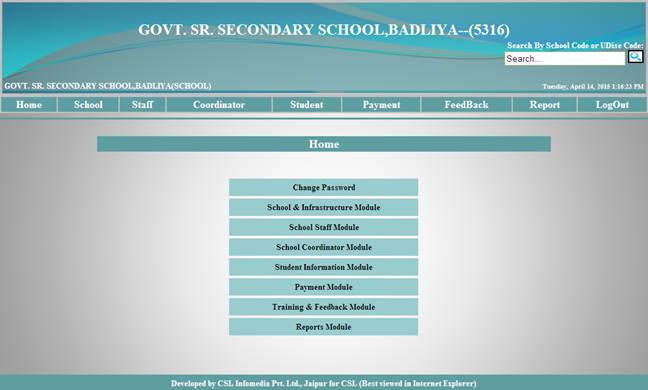
1. Change Password – In this, user can change password whenever needed
.
2. School & Infrastructure Module - This module includes School and Infrastructure entry and reports which include issue and follow up related forms as screen show. 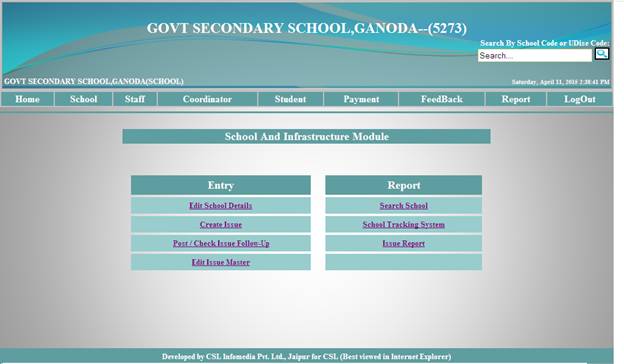
A) Edit School Details – This form is used edit school details entry. 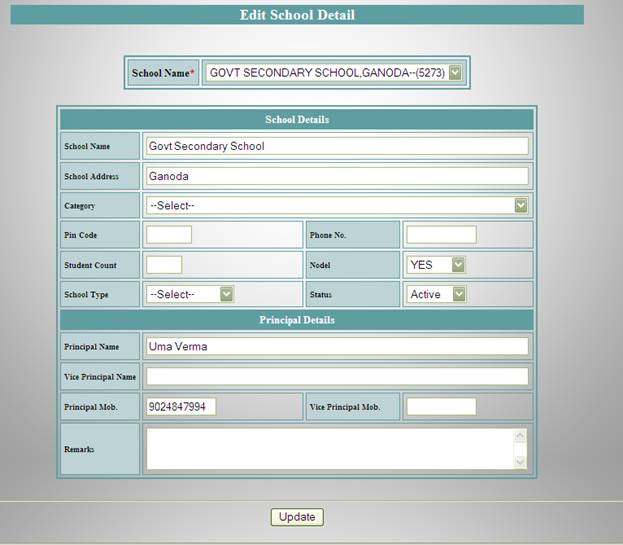
Top of Form
B). Create Issue - This form is used to create an issue related to school and stationary items.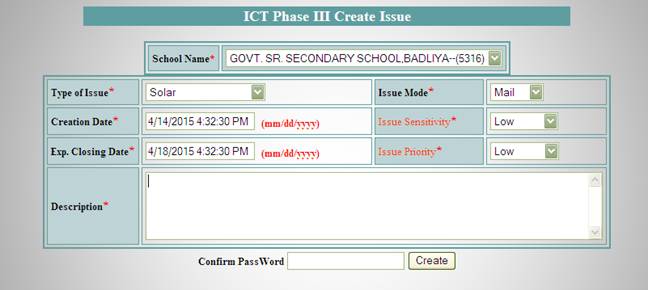
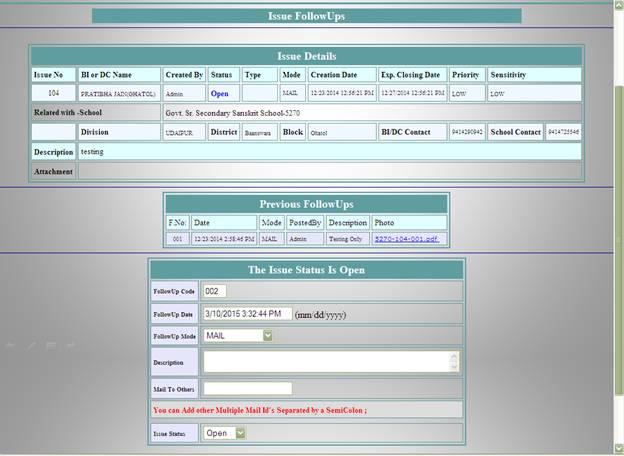
C) Post/Check Issue Follow-Up- Create Follow up for Issue Crated which will show what action has been taken for the particular issue created earlier.
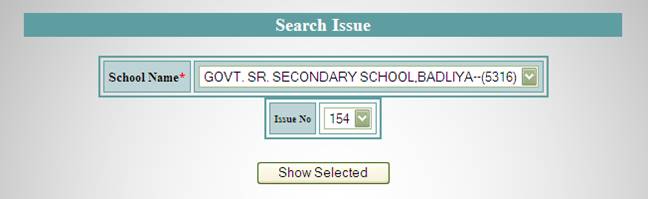
After click on Show Selected user will show the report or form to create Follow up on that issue.
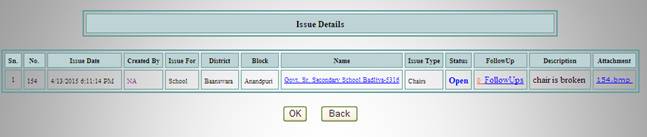
It will show the Details of the issue and also show the Followup created regards to the issue with a link on FollowUps. Which will redirect the controll to a new form look line the followed page.

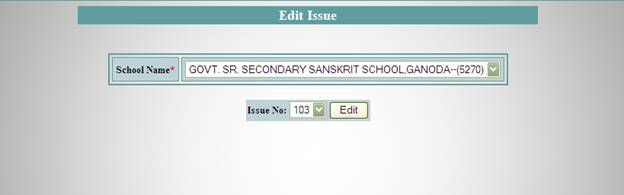
D) Edit Issue Master- This form is used for edit Issue created earlier.
First user need to select Issue which he want to edit and then click button Edit
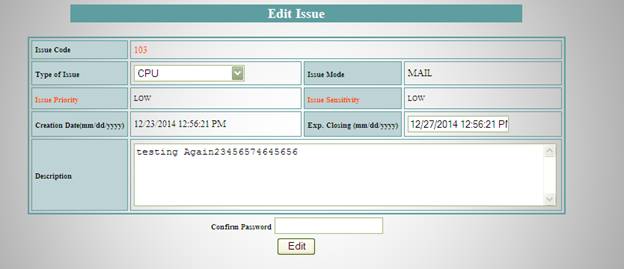
After Click on Edit button following form will be show. It will Edit the Details of created Issue.
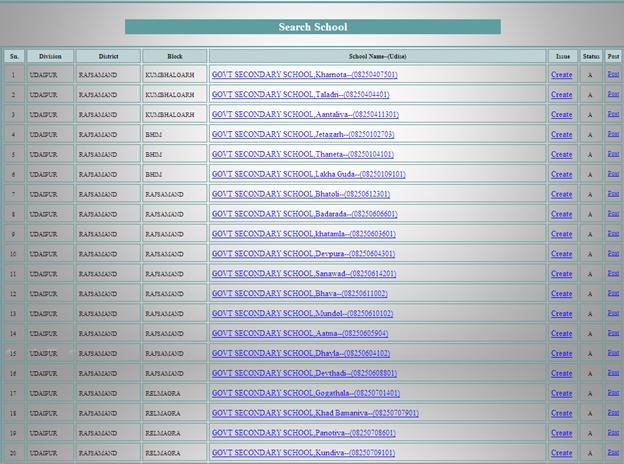
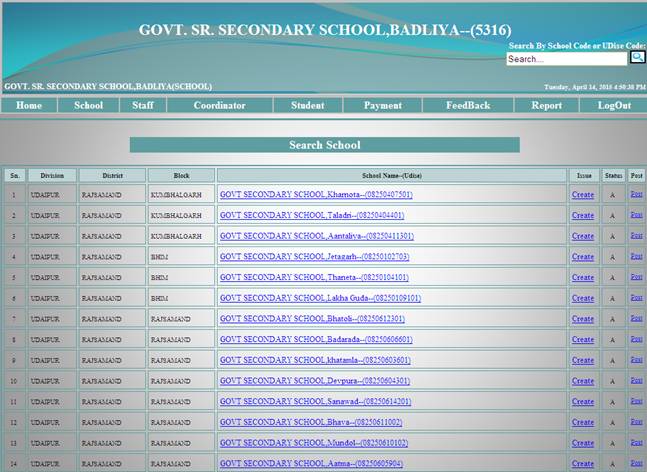
E) Search School:- It will Search School By name And Address and Show School Details about School Code District Block etc. as followed.

Afer click on Show Report system will show the Report which is as followed.
F) School Tracking System – This report includes school information, student details in various classes, items issued / returned details, Coordinator details, school related follow ups etc.
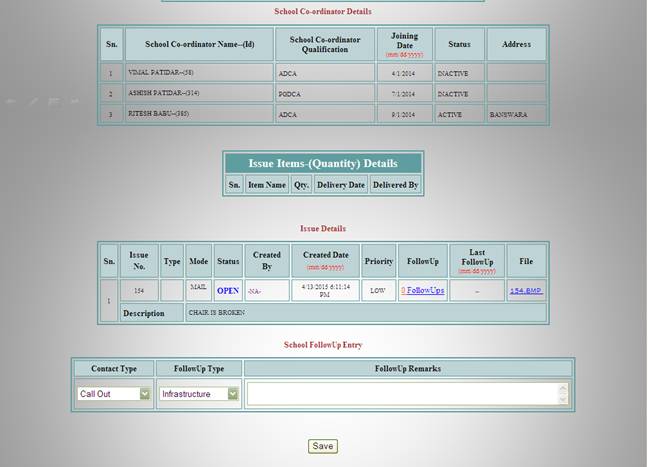
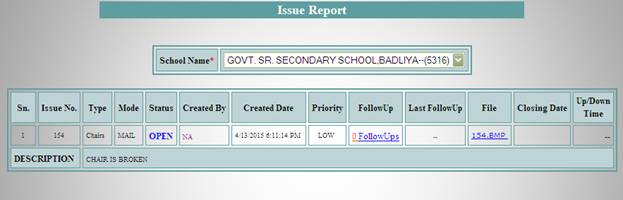
G) Issue Report-This Report show the Issue created earlier in the school here we can create its follow up also. This report will show as followed.
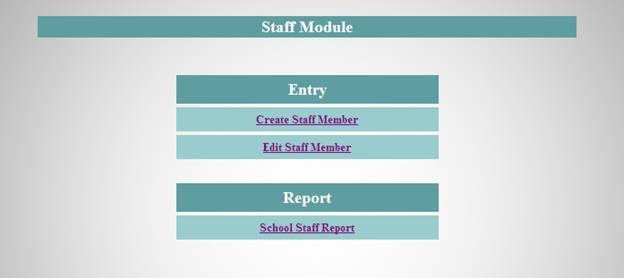
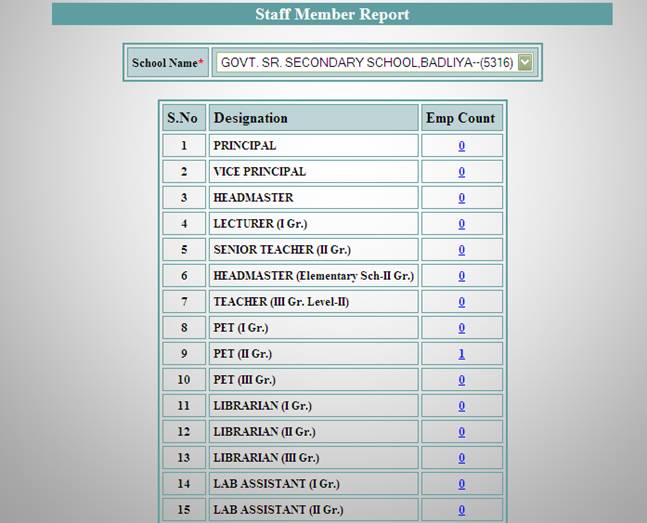
3. School Staff Module-This module include staff member entry and edit from and also provide report of all available staff for a particular school look like the following screen shot.
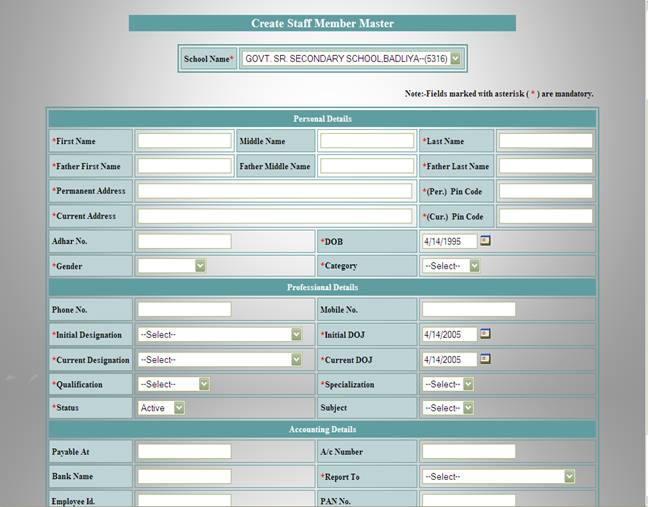
A) Create Staff Member - This Entry form allow you to create a member in a selected school and the form look like the screen shot.

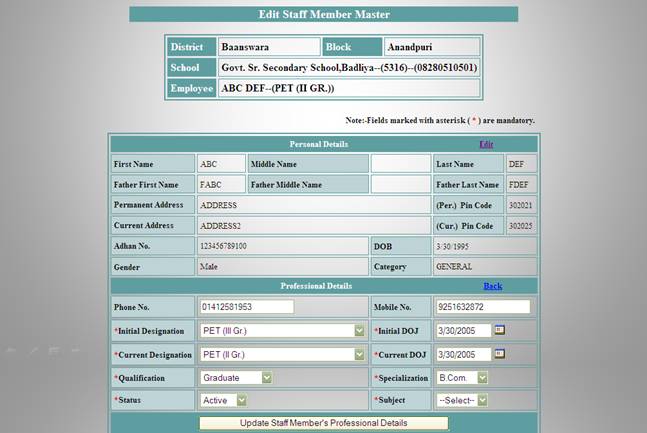
B) Edit Staff Member-This Entry form allow user to edit the selected member’s details which is look as followed.
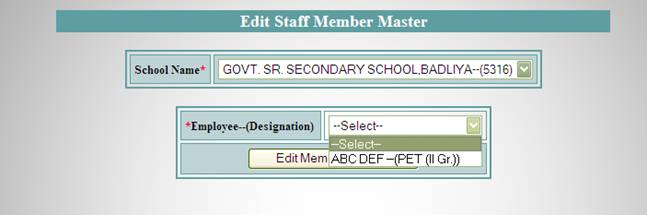
After selecting of Employee user will the scree that allow to edit as specific pice of information.
C) School Staff Report - This report will show the available staff for a particular school which is look like this.
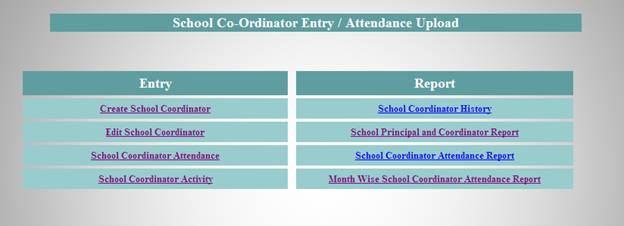
4. School Coordinator Module-This module include Create, Edit, Attendance of Coordinatare and Reports related to Entry Forms. This module look like this.
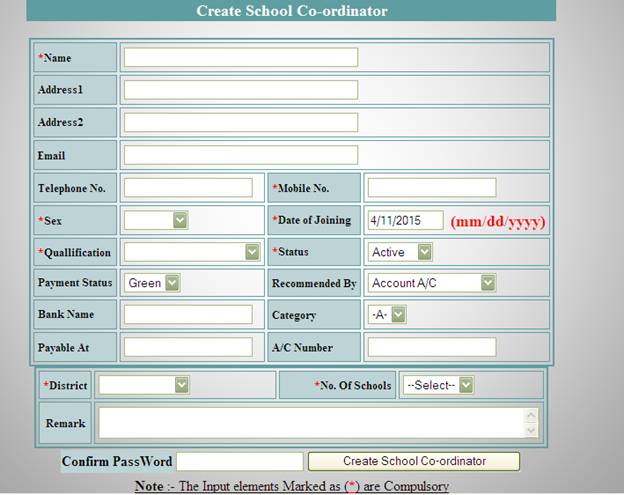
A) Create School Coordinator-This module allow user to create School Coordinator and the form look like the screen shot.
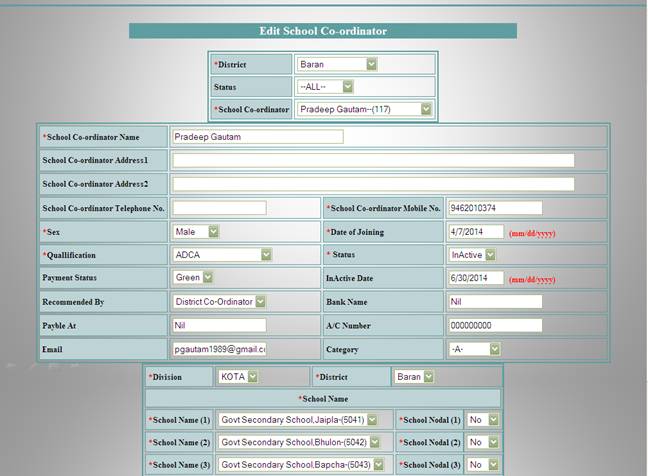
B) Edit School Coordinator-This form allow user to edit coordinator information as the following screen shot.
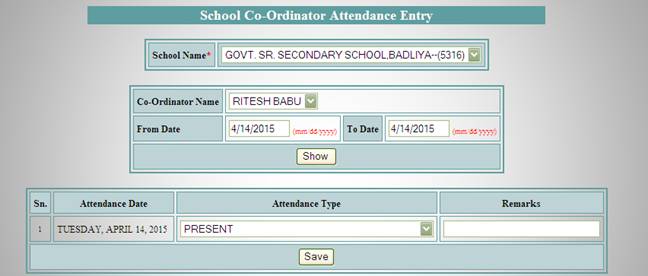
C) School Coordinator Attendance – This entry form use to submit attendance of coordinator on the particular day of no of days. Look like this
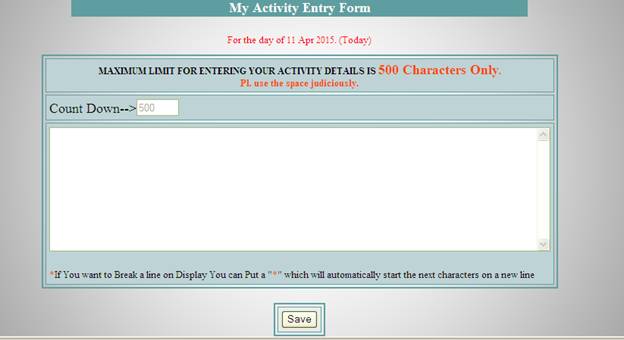
D) School Coordinator Activity - This entry form get the coordinator Activity for a particular day and look like this.
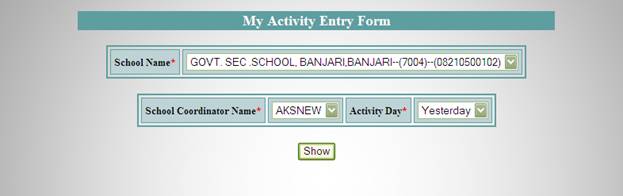
After this screen user will see the activity entry form look like that.
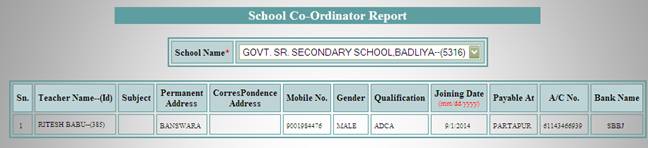
E) Coordinator History – this report will show the coordinaor aval in school
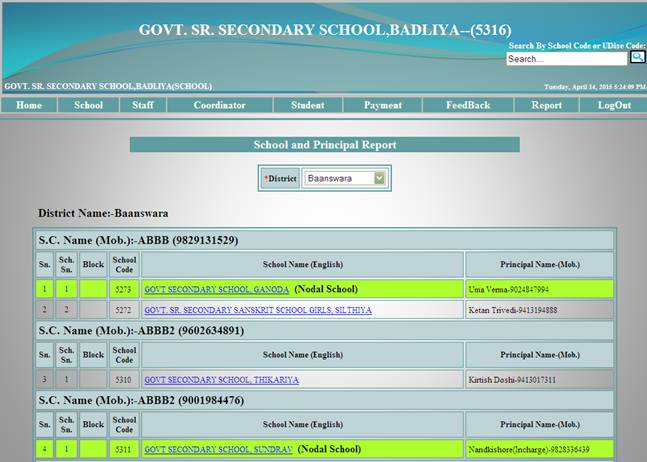
F) School Coordinator and Principal Report-this report show the school details with coordinator as like this
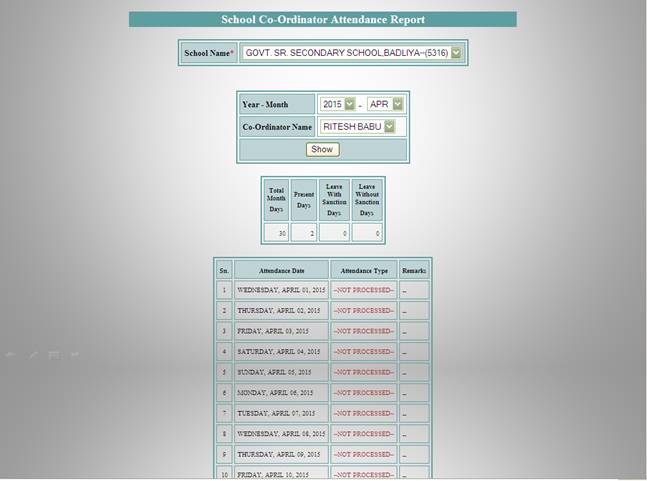
G) School Coordinator Attendance Report-This Report show the attendance of an Employee between to dates user have specified. This Report look like that.
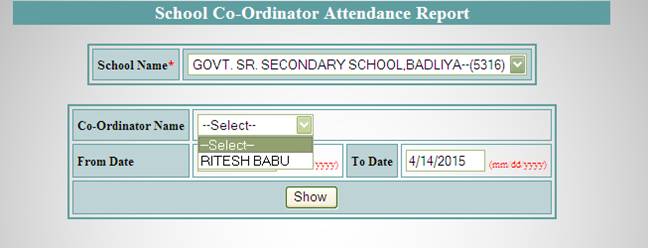
After Selection of filters and dates report will look like that.
H) Month Wise School Coordinator Attendace Report-This Report show the Month Wise Attendace report and look like this.
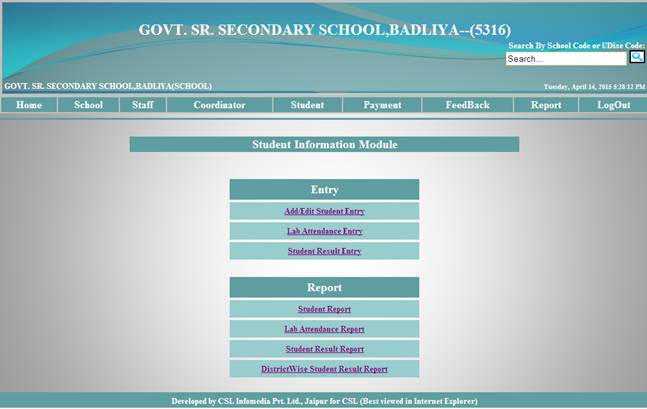
5. Student Information Module – This module includes complete student tracking like their details, attendances, student feedback etc.
A) Add / Edit Student Entry – This form is used for student related details entry.
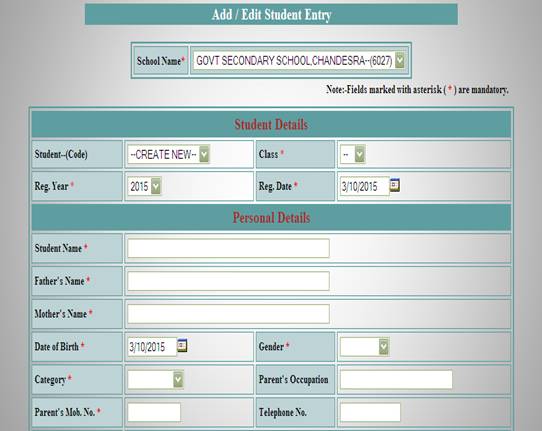
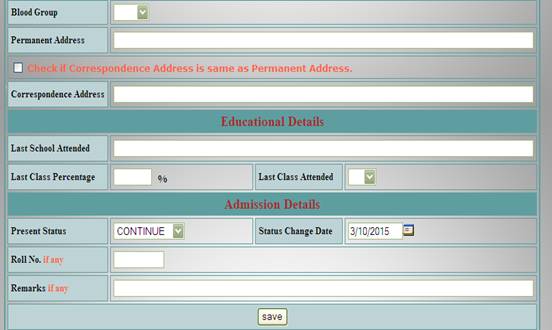
Top of Form
Bottom of Form
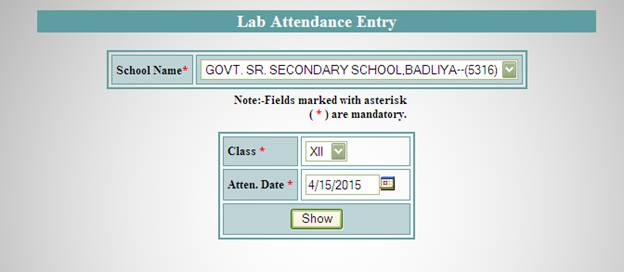
B) Lab Attendance Entry– This form is used for Lab Attendance of Student and in lab which Subject is covered and which class it taken.
 Top of Form

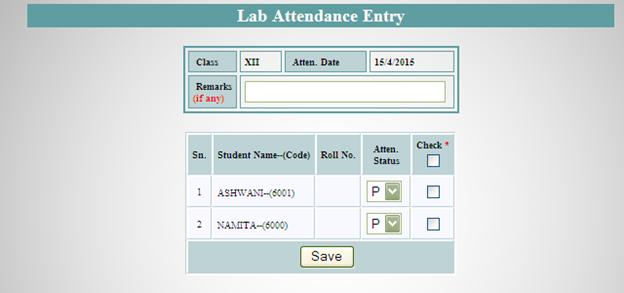
After Click on Show Button, you will get then you will able to Attendance Status of student –
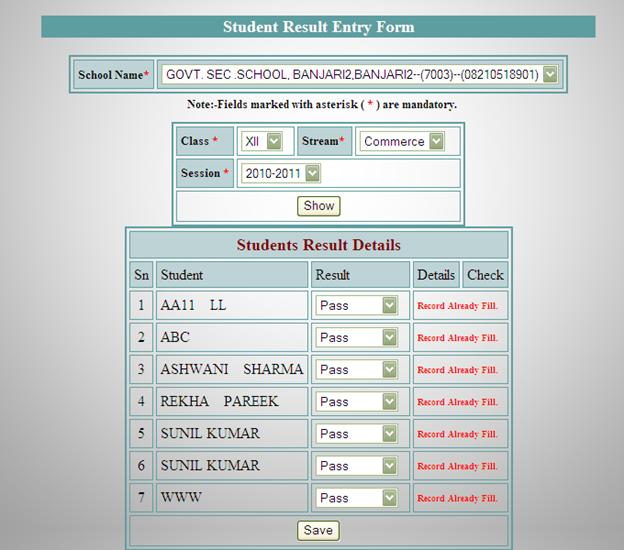
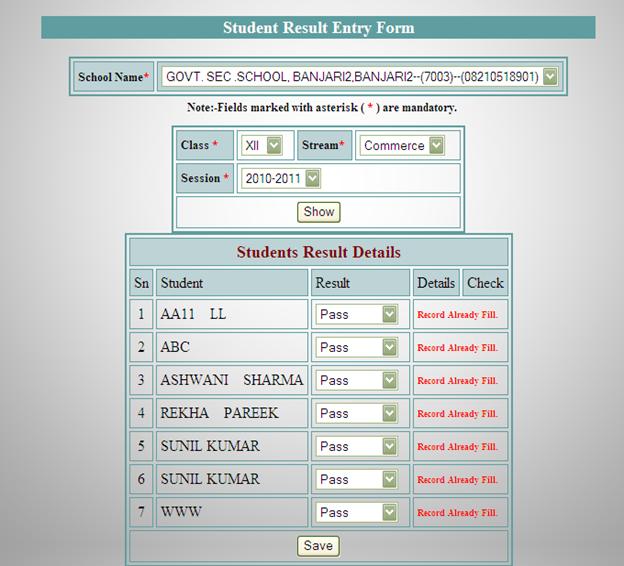
C) Student Result Entry-This Entry Form used to get Student Result Information to store in system and look like this.
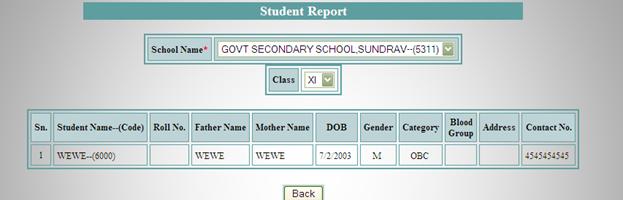
D). Student Report– This report includes Student information, according to Class in various classes
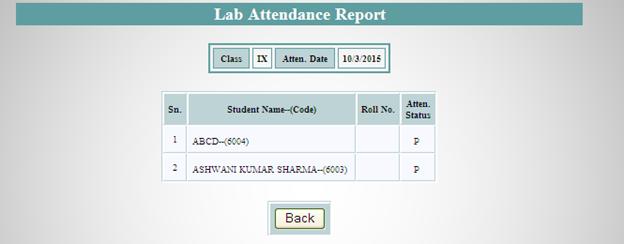
E) Lab Attendance Report – This is used for viewing attendance of students.
Top of Form
Bottom of Form
After click on Show button, you will get the Report of Attendance -
F). Student Result Report– This report includes Student Result information, according to Class and subject and Stream. This report look like that
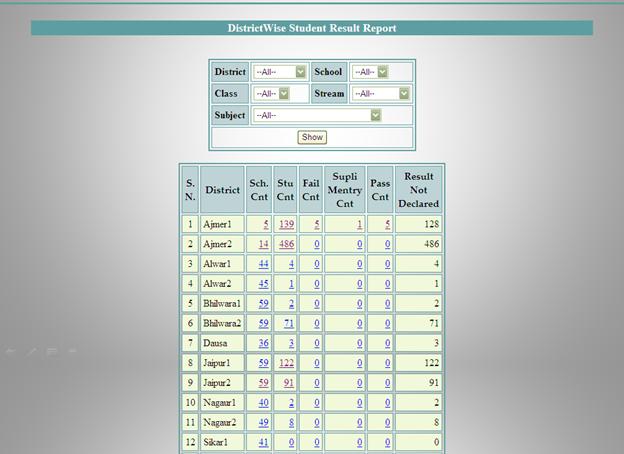
G) District Wise Student Result Report-This report show student result at district level and look like this.
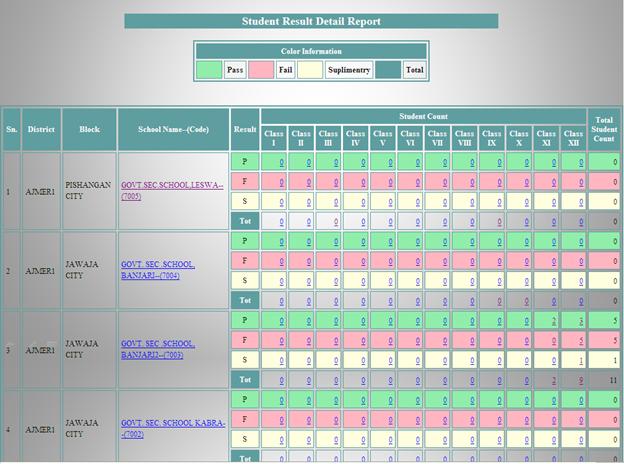
If user click on any number this will show the detail report which show as followed.
6. Payment Module-This Module will not be for school and staff so we are showing this module in admin login which shows as followed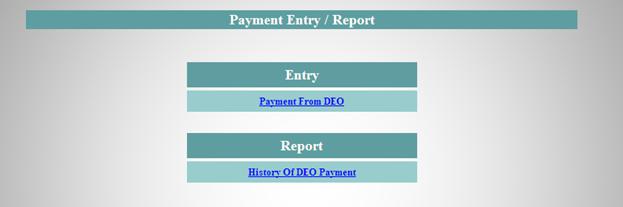
A) Payment From DEO-This Entry form show payment related information about TDS, deduction, and payment received. And look as followed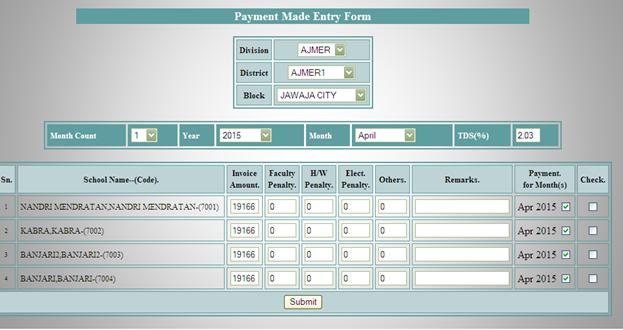
B) History of DEO Payment-This report shows the payment information done previously and look like the screen showing as below. 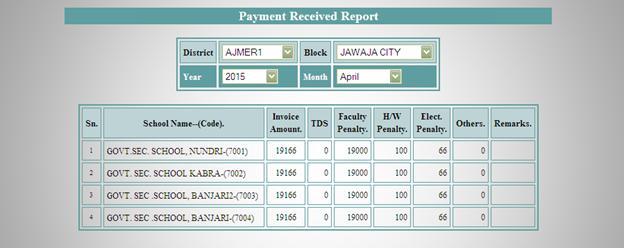
Top of Form
7) Training & Feedback Module – This module have feedback questions related experience with Coordinator and Feedback report.
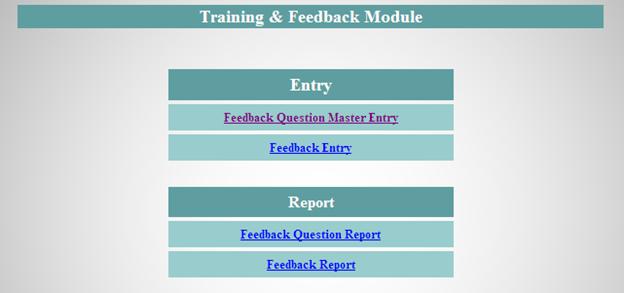
A) Feedback Question Master Entry Form: This form is used for Feedback question According to Coordinator performance and Student performance wise. It will get Question that will ask to Student and Employee about its experience with Education.
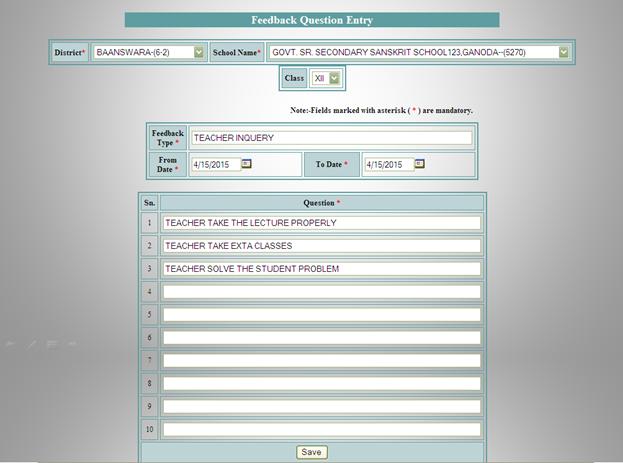
B) Feedback Entry Form- This form is used for getting a response from user as per the login type.
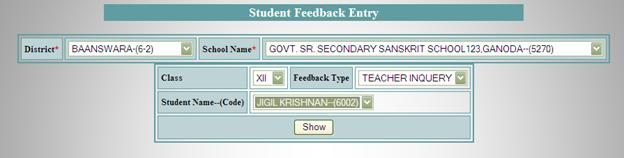
After that new window will be look like that.
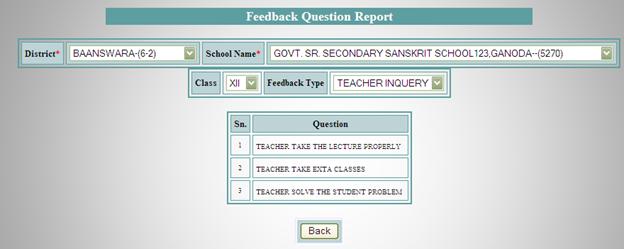
C ) Feedback Question Report: This Resport show the question for the feedback and look like this
Top of Form
·
·
·
·
·
·
·
·
·
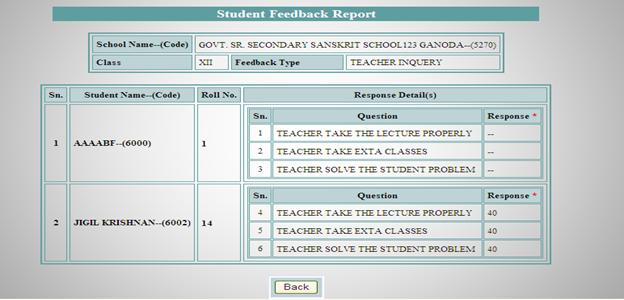
D) Feedback Report-Bottom of Form
· This form shows Student Feedback reports according Date wise.
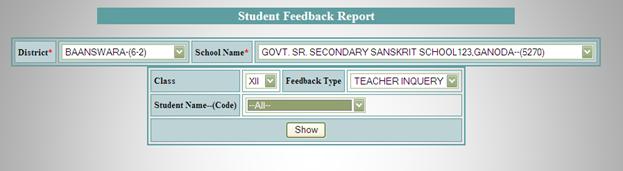
After Click on Attempt Count No. User will see the following Form or Report.
8. Reports Module - This module includes some report which show the overall performance of the system according to school and at district level also showing as followed.
Top of Form
A) Daily Report-This report show the allover information at district level about student, coordinator, issues, follow-ups and many more which look like this. 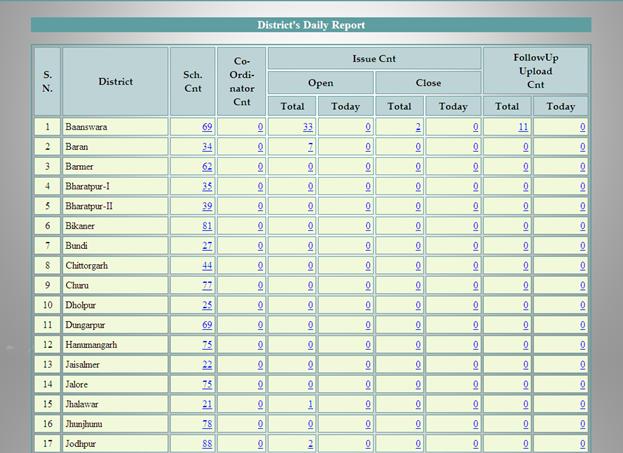
B) District wise school summary Report-This report show district wise summary of over all schools. And look like this. 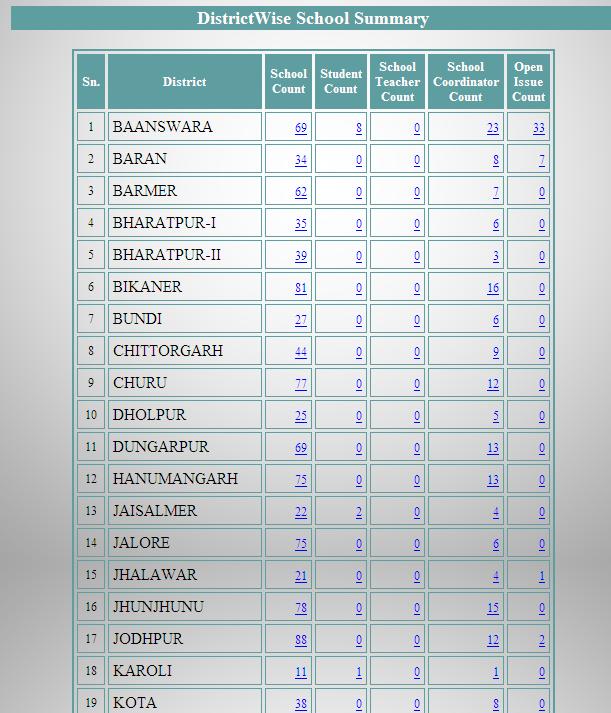
C) School Tracking- This report includes school information, student details in various classes, items issued / returned details, Coordinator details, school and look like this
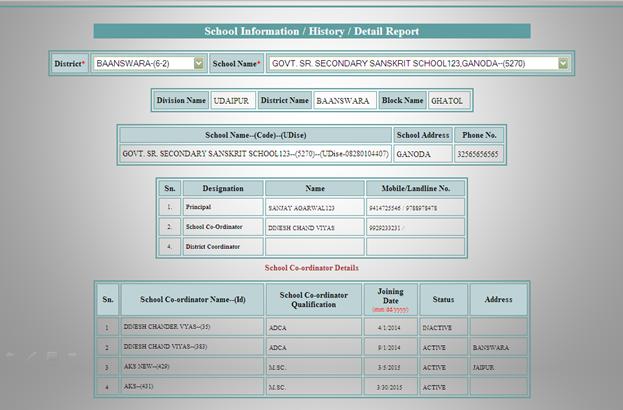
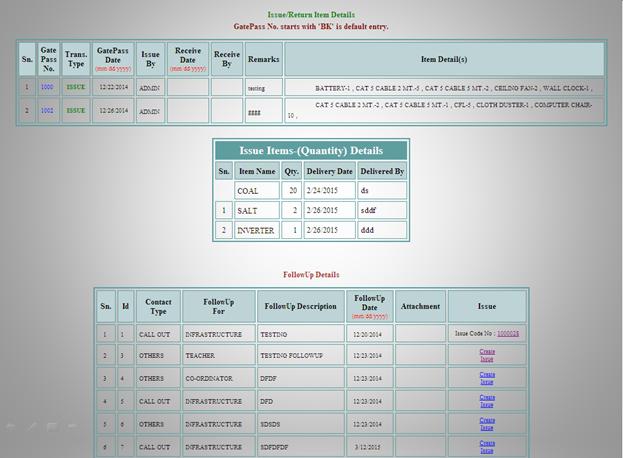
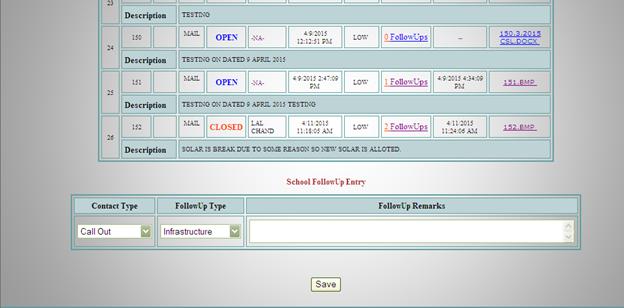
D) Search School:- It will Search School By name And Address and Show School Details about School Code District Block etc. as followed.

Afer click on Show Report system will show the Report which is as followed.