

Партнерка на США и Канаду по недвижимости, выплаты в крипто
- 30% recurring commission
- Выплаты в USDT
- Вывод каждую неделю
- Комиссия до 5 лет за каждого referral
Choice of font
By default, Antioch automatically changes to the ‘Vusillus’ font when you switch on any of its keyboards. If you have another font with a full classical Greek set, you can choose this as the default font. The setting is on the ‘Greek’ command bar* under ‘Preferences -- Text’.
Registered users of Antioch have a choice of extra classical Greek fonts in other styles, as listed in the message sent with registration. There are other fonts with a classical Greek set. They include the enormous ‘universal’ font Arial Unicode MS, which is supplied with recent versions of MS Office, and the newest version of Tahoma supplied with Word 2003 and 2007. Palatino Linotype is distributed with Windows 2000, XP and Vista (but the 2000 version has a lenis on capital Rho asper). Other suitable free fonts are Titus Cyberbit Basic from http://titus. fkidg1.uni-frankfurt. de/unicode/tituut. asp , New Athena Unicode from https://webfiles. berkeley. edu/~pinax/greekkeys/NAUdownload. html , Gentium from
http://scripts. sil. org/cms/scripts/page. php? site_id=nrsi&item_id=Gentium , Cardo from http:///cardofnt. html , and Legendum from http://home. kabelfoon. nl/~slam/fonts/fonts. html .
Converting Greek documents
This section is quite technical, but need be read only if you need to convert Greek documents between different formats. Antioch will convert documents made with older versions of Word and older classical Greek systems.
Older Greek formats
There are two main kinds of obsolete encoding systems for classical Greek.
The older ones are ‘7-bit’: that is, for normal Greek they use only the bottom half of the basic latin character set, those characters produced directly by the keyboard. (There may be some special symbols in the upper half of the character set, seldom used.) Diacritics are separate ‘zero width’ characters drawn so that they appear above or below the previous letter. These systems, though crude, are quite robust, and can be converted to Unicode* without bothering about the type of document or font that is being dealt with. The 7-bit formats with which Antioch can deal are SGreek,* Linguist’s Software,* Ismini* and SPIonic.*
Later systems are ‘8-bit’: they use the whole upper part of the basic character set, which is filled mostly by lower case vowels with various diacritics. Of these formats, Antioch will handle WinGreek,* Son of WinGreek,* GreekKeys,* Vilnius University,* Lector,* SIL* and Titus.*
Filling the whole character set has caused increasing difficulty since 1997, when Microsoft appropriated eight of the places for its own purposes, thus making some Greek characters unprintable. Programmers coped with the problem in two ways.
1. There are two kinds of 8-bit font: ‘text’ fonts, the normal type; and ‘symbol’ fonts (such as Symbol itself, and dingbat fonts). Word 97, for the first time, distinguished between the two types and gave their characters different numerical codes. Text fonts use the codes (in hexadecimal numbers) 0020-00FF. Symbol fonts use the codes F020-F0FF. Symbol fonts are immune to the loss of letters described above, so several classical Greek applications started using them, including (old) WinGreek and GreekKeys. Unfortunately Word 97 and later versions don’t consider that the letters provided by these fonts are alphabetic characters, so that in text, word breaks can appear in the middle of words. Nevertheless, these symbol fonts remain in use. Note that text written with a symbol version of the font is illegible by people who have a text version of the same font, and vice versa; though a way of solving the problem is given below.
2. It was also possible to circumvent the loss of letters with a technical fix to a normal text font: inserting substitute characters for the eight missing ones so that the text displayed normally. This was the path taken by Son of WinGreek, some versions of GreekKeys, and Vilnius. It worked satisfactorily until the arrival of Windows Vista, in which these substitutions no longer work. Note, therefore, that documents in these three systems can’t be displayed properly on a computer with Vista. Also, if you save such a document on a computer with Vista, the affected letters will be permanently lost.
It is also important to know that there are two main types of Word document. Those made with Word 2, 6 and 95 don’t distinguish between text and symbol fonts, and are also incapable of displaying Unicode* characters. Word 6 and 95 documents are identical in format. Documents made with Word 97 and later do distinguish between the two font types, and can display Unicode characters. Those made with Word 97-2003 are identical; Word 2007 documents (.docx) have extra bells and whistles and can’t be read with earlier versions of Word, though you can get a Microsoft patch that allows Word 2003 to display them.
Word 97 and 2002 (Office XP) can export correctly made Word 6.0/95 documents. Word 2003 can only export them as Word 6.0/95 RTF files, though they have a .doc extension. This can cause problems, as described below. Word 2007 can only export non-specific RTF files, which even less useful, especially if they have been damaged by Vista as described above.
To deal with this complex situation as well as can be managed, Antioch offers three types of conversion from older formats to Unicode.
Conversion of older files to Unicode when opened
Some older documents can be converted to Unicode* instantly, simply by opening them. This works only for documents in Word 2, 6 and 95 formats, not for Word 97-2007 documents or RTF files -- but see ‘RTF files’ below. Documents made with later versions of WordPerfect can also be converted; see ‘WordPerfect documents’ below.
If you have Windows Vista, which damages documents in 8-bit classical Greek formats, this is the only way in which such a document can be converted without loss of some characters. If you have a document in such a Greek format that was last saved with Word 97 or later, the only thing you can do is to find an old computer with, at the latest, Word 2002 (Office XP) and Windows XP. There is no need for Antioch to be installed on it -- though if it is installed, you can do the conversion on the spot. Open the document and save it as a ‘Word 6.0/95 document (.doc)’. It will then be converted automatically when opened by any computer with Antioch.
Important note: the converted document is still in the older Word format. Do not click the ‘Save’ button, which would save it as (e. g.) Word 6 and destroy the Greek text. Click on ‘File -- Save As’, and select ‘Word Document’.
If you do not want Word 2, 6 and 95 documents to be automatically converted, uncheck the ‘Enable’ box in the ‘Greek -- Preferences -- Conversions’ dialog, close Word and restart the computer to make the change take effect.
The systems supported are WinGreek* / Son of WinGreek,* SGreek,* GreekKeys,* Linguist’s Software,* Vilnius University coding,* SIL,* SPIonic,* Lector,* Titus* and Ismini.* When you open one of these documents in Word 97 or later with Antioch installed, it will be automatically converted to the Unicode classical Greek standard. GreekKeys files made with Word 6 for Mac are usually imported correctly, as long as they are opened in original Mac-made form -- that is, not saved as Word for Windows files on the Mac. However, some cannot be imported, because their internal coding doesn’t match the original specifications.
Documents are recognised by their font name. For the older 7-bit systems:
Anything in a font called ‘Sgreek, ‘Sgreek Fixed’ or ‘SGRead’ is assumed to be in SGreek* coding.
A nything in ‘SPIonic’ is assumed to be in SPIonic* coding.
Anything in ‘GraecaII’, ‘GraecaUBS’, ‘GreekSansII’, ‘GreekSansLS’, ‘Hellenica’, ‘Odyssea’, ‘OdysseaF’, ‘OdysseaUBS’, ‘Payne’, ‘PayneCondensed’, ‘SymbolGreekII’, ‘SymbolGreekIIP’, ‘SymbolGreekIIPMono’, ‘SymbolGreekPF’ or ‘UncialII’ is assumed to be in the current Linguist’s Software* coding.
Anything in ‘SuperGreek’, ‘SSuperGreek’, ‘SymbolGreek’, ‘SymbolGreekP’, ‘SymbolGreekPMono’,
‘UncialLS’ or ‘Graeca’ is assumed to be in the older Linguist’s Software* coding in use till the mid-1990s.
Anything in ‘Ismini’ is assumed to be a Mac Ismini* document and converted accordingly. Note that there are PC fonts called ‘Ismini’ too, but they seem to be improperly made conversions and lack certain characters, so we are obliged to ignore them.
For the later 8-bit systems:
Anything in a font called ‘Grec’, ‘Greek’, ‘Greek Old Face’, ‘Greek Old Face C’, ‘Greek Old Face 98’, ‘Milan Greek’, ‘Standard Greek’, ‘Angaros’, ‘Korinthus’, ‘Kalos’, ‘IsminiPC’, ‘UnIsminiPC’ or ‘Aisa’ is assumed to be in WinGreek* coding.
Anything in ‘Kadmos’, ‘Sparta’, ‘Alexandria’, ‘Attika’, ‘Athenian’, ‘Greek GKC’, or ‘Milan Greek GK’ is assumed to be in GreekKeys* coding.
Anything in ‘GraecaII’, ‘GraecaUBS’, ‘GreekSansII’, ‘GreekSansLS’, ‘Hellenica’, ‘Odyssea’, ‘OdysseaF’, ‘OdysseaUBS’, ‘Payne’, ‘PayneCondensed’, ‘SymbolGreekII’, ‘SymbolGreekIIP’, ‘SymbolGreekIIPMono’, ‘SymbolGreekPF’ or ‘UncialII’ is assumed to be in the current Linguist’s Software* coding.
Anything in ‘SuperGreek’, ‘SSuperGreek’, ‘SymbolGreek’, ‘SymbolGreekP’, ‘SymbolGreekPMono’,
‘UncialLS’ or ‘Graeca’ is assumed to be in the older Linguist’s Software* coding in use till the mid-1990s.
Anything in ‘Attica’, ‘Hierapolis’, ‘Corinthus’, ‘Corinthus Lector’, ‘Elementa Greek’, ‘Anacreon’, ‘Grecs du roi’, ‘GreekGrotesque’, ‘Milan Greek V’ or ‘Greek V’ is assumed to be in Vilnius University* coding. ‘Hellenica’ and ‘Odyssea’ also have Vilnius versions, but the Linguist’s Software versions take preference. If you need to convert Vilnius versions of these fonts, please contact us for a fix.
Anything in ‘SIL Galatia’ or ‘SIL Ulysses’ is assumed to be in SIL* coding.
Anything in ‘graece (by R. Maier)’ is assumed to be in Lector* coding.
Anything in ‘TITUS-Griechisch’ is assumed to be in Titus (Greek)* coding.
Only the parts of the original document that are in one of these named fonts will be converted, so you can import documents that are partly in Greek and partly in roman letters. The roman letters present in Linguist’s Software fonts are converted to their equivalents in Vusillus. However, these fonts don’t have a full roman set and use capital Alpha for A, capital Eta for H, and so on, so the results will be readable only in a Unicode font that includes at least modern Greek. The spellchecker will mark them as wrongly spelt.
In 8-bit document formats, diacritics before capital vowels are separate symbols from the capitals. The Unicode* system which Antioch uses has one-piece diacritic + capital characters. You can change all the old pairs of characters to single characters with the ‘Text re-encoders’ menu under ‘Greek’ on the command bar.* Choose ‘Combine standalone diacritics’. It may take a few seconds for all the changes to be made, especially in a long document.
In 7-bit SGreek, Linguist’s Software and SPIonic documents, the diacritics on lower-case vowels are separate zero width* characters superimposed on the letter, often producing ugly misplacements. When you import such documents, this arrangement will be preserved. You can change all these pairs to single characters with the ‘Text re-encoders’ menu: choose ‘Combine zero-width diacritics’. It will take several seconds to make all the changes, or several minutes in a long document. Diacritics before capitals are also zero-width characters resting on a space character. In correctly typed documents, a word beginning with a capital vowel needs two spaces typed before it; but often typists don’t bother to do this. The Antioch combination procedure will take care of both styles in one pass. If only single spaces have been typed, check the ‘Do not combine spaces’ box.
‘Fast convert’
The ‘fast convert’ feature allows you to quickly convert into Unicode* small pieces of text written in older formats. This is useful when you need to paste small quotations from older formats into your Unicode text. Note that when you cut and paste from older formats, it may be safer to use Word’s ‘Edit, Paste special, Plain (unformatted) text’ feature rather than the normal procedure. Also note that only the ‘fast convert’ procedure can convert text in BetaCode.
If you click ‘Greek -- Fast convert’ while no text is selected, Antioch will display a dialog box which allows you to select the codepage it will use for fast conversions. If you do not know which codepage to select, see above for a list of available codepages and the fonts which use them.
If you select a portion of text and click ‘Greek -- Fast convert’, Antioch will attempt to make it readable as quickly as possible. However, only a basic conversion will be performed. It is recommended that, after ‘fast conversions’ you also run the ‘Greek, Text re-encoders’ macros to correctly recombine zero-with and/or spacing diacritics).
RTF files
RTF files in 8-bit format will be only partly converted when they are opened, producing an alarming-looking mess. However, this can be set right: see the next section.
‘Rewrite bad coding’ -- the main converter
This procedure is used to convert all text in a named 8-bit font to Unicode. It is controlled from the ‘Greek -- Text re-encoders -- Rewrite bad coding’ dialog box. It has two uses.
1. Most documents in 8-bit formats that are encountered nowadays have been last saved in a recent format -- Word 97 or later. Therefore they won’t be converted automatically on opening, and you will need to use this procedure.
2. RTF files may be partially converted on opening, and 8-bit Greek files made on a Mac may have had their text garbled by an incorrect transfer from Mac to PC, for example as the result of the Mac user saving the file on a PC-type floppy disk. This procedure will clean up both faults.
You need to make several settings before using the converter. Your most recent settings are saved for future use.
The conversion process is not fast, and may take several minutes. It does not take much longer to convert long documents than to convert short ones, so you are advised to convert as much text as possible in a single file, rather than do it in small batches.
Source font
As the source font, select the font in which the affected text appears, even if that font is not installed on your computer and even if it is a Unicode font, including Vusillus itself. If the font which needs treatment doesn’t appear in the list, click ‘Cancel’, put the cursor somewhere in the corrupted part of the text, and reopen the dialog box. The name will now appear on the list.
Target font
As the target font, select a Unicode font containing classical Greek characters. In case of doubt, select Vusillus. The source and target fonts may be the same.
Codepage of the source font
Select the codepage* which was used to create the file. In case of doubt, you may try different codepages, but remember that you always should always close the document without saving it and reopen the original document before you try a different codepage.
Most ‘WinGreek’ texts are actually ‘Son of WinGreek’ texts. Unless you are certain that your text has been written using an early (original) version of a WinGreek font, select ‘Son of WinGreek’.
Technical descriptions of the different codepages that Antioch can convert can be found in your ‘Program files\Antioch’ folder. Search for Ms Word documents called WG2UNI. doc (WinGreek), SOWG2UNI. doc (Son of WinGreek), GK2UNI. doc (GreekKeys), SG2UNI. doc (SGreek), VI2UNI. doc (Vilnius University), SIL2UNI. doc (SIL), SPI2UNI. doc (SPIonic), GRAE2UNI. doc (Lector), TITG2UNI. doc (Titus Greek) and ISM2UNI. doc (Ismini).
Treat source text as
Select the source text format. In case of doubt, or if the re-encoder fails to convert some characters, you may try a different format. Remember, however, that you must always reopen the original document before you try a different option.
Repair characters wrongly coded as « and »
This is a common problem on computers set to a language in which guillemets are used. If it occurs, check the box.
Blank squares
In SGreek and Linguist’s Software fonts there are many special apparatus criticus symbols that are not present in Vusillus, or indeed in the Unicode set. These are converted to the Unicodes for symbols that most closely resemble them. If, after running the appropriate ‘clean-up’ routine, blank squares persist, try changing these squares to Times New Roman, whose newer versions include some of these symbols.
Other symbols may be found in Unicode fonts that have a very full set of symbols, for example Lucida Sans Unicode, which your computer almost certainly has.
WordPerfect conversions
Later versions of WordPerfect can correctly export classical Greek files in Word 97-2003 format. However, Word can’t import WordPerfect classical Greek files: they appear with a lot of gaps where it has not understood accented letters. So to import text into Word, you should use WordPerfect to create a Word 97 .doc file, then open it with Word and run the Antioch converter on the parts of the text which use internal WP fonts (WP Greek Courier, WP Greek Century etc.). It does not matter if you don’t have any of these fonts; just place the cursor anywhere on a section of Greek text, so that Antioch will see it and include this font in its list so that you can select it as a source font. It is essential to select the exact font and not ‘All fonts’; otherwise, punctuation will be changed to meaningless Greek letters. Choose the ‘RTF or Word 6 import (more characters affected)’ option.
An additional search and replace operation, within MS Word, will probably be needed in order to replace the font used for non-Greek characters (including spaces and punctuation) by your Unicode Greek font (Vusillus), so that the same font is used everywhere.
Both Word and WP will probably wrongly interpret the Greek letter mu as the symbol for ‘micron’. Since that symbol is part of the usual MS codepages, it will probably not appear in a WP internal font. Antioch
will convert the symbol to a proper mu if you check the ‘Repair mu’ box in the dialog. This works on the whole text, regardless of the font. Note that, with most fonts, keeping the code for ‘micron’ should make no visible difference, although its Unicode value is wrong.
WordPerfect 9 is the first version able to export files in Word 97-2003 format. WP 8 users may need to download a service pack or an additional converter from Corel; users of older versions should download a separate conversion utility. The web pages on which these things used to be issued have long since disappeared, so it will be necessary to write to Corel to obtain them.
BetaCode conversions
Because of the nature of BetaCode,* in which capitals are indicated by a preceding asterisk, so that the entire text has to be scanned one character at a time, we can only offer one conversion method, ‘Fast Convert’. If you have a long BetaCode text to convert, ignore the warning about maximum length. You may have to leave the converter running for some time to complete the job, but it will be completed.
Exporting documents
A Word 97-2003 Greek document made by Antioch can be read by anyone who has one of these versions of Word and a Unicode font that includes all the necessary characters (and Word 2007 can also save in this format to make the document generally compatible). Some older fonts have still not caught up with the latest additions and may, for example, have only one form of digamma, sampi etc., on the code properly assigned to the capital form.
The standard Unicode set does not include any capital Upsilons with lenis, with or without other accents. The Vusillus font does include these characters but, in order to maintain Unicode compatibility, you should not use them in a document file that will be sent to other people. Type the diacritic(s), then a space, then the capital Upsilon or Rho, and delete the space. The result will be two uncombined characters that can be read in any Unicode classical Greek font.
Converting Greek documents to older formats
As a rule, one should avoid converting Unicode documents into older formats. Sometimes, however, there is no other suitable solution -- especially when you are making a document to be printed by someone with an old copy of Quark Xpress that can’t do Unicode (though the latest version can do this).
Most pre-Unicode (Windows 3.x) ancient Greek fonts are ANSI-coded, i. e. declared as if they were Roman fonts (Latin characters). Word 97-2007 do not allow this kind of invalid coding. In particular, when saving in the Word 6.0/95 format, Word may remap or ignore some characters (especially Greek characters that use the codes of recently added characters, such as the euro symbol, or characters whose treatment varies according to the language, such as French or English quotation marks). The only safe solution is to convert into a Symbol-coded font, which must exist on your computer, before exporting.
Antioch installs and uses for this purpose a special font called ‘Zzblank’. ‘Zzblank’ displays all characters as asterisks, but this allows preserving non-standard internal codes.
The way in which you save the converted document is important, and depends on the version of Word that you have on your own computer, and on the operating system used by the recipient.
From your own point of view, the ideal is to have a version of Word no later than 2002 (Office XP). In this case it doesn’t matter what version of Windows you have. This will allow you to save the document as a genuine Word 6.0/95 file. It can be sent to a recipient with a version of Word no later than 2002, and a
version of Windows no later than XP (i. e. not Vista); or to a user of Mac OS 10 with any word processing program that can read Word 6.0/95 files -- which most can.
This old file type doesn’t distinguish between text and symbol fonts. Therefore, if it is opened on a machine that does not have the ‘Zzblank’ font installed, the Greek text will be understood as having been written in a normal text font. The recipient will merely need to perform a search and replace operation to substitute a correct font (GreekKeys, Son of WinGreek etc.) installed on his/her system for the ‘Zzblank’ font used by Antioch for export. This applies equally to PC and Mac users.
If you your version of Word can’t make a Word 6.0/95 file (i. e. Word 2003 and 2007), all you can do is make a normal Word file and rely on the recipient to be able to save it in an old format that will erase the distinction between text and symbol fonts; or, failing that, read it with a symbol font, such as the ‘Greek’ font supplied with the old program WinGreek*, which is still in circulation although the program is long dead.
To start the conversion, go to ‘Greek -- Text re-encoders -- Prepare Word 6/95 Export’.
Source font
As the source font, select the Unicode font in which the Greek text is coded, even if that font is also used for other languages. If several fonts are used for ancient Greek, you’ll have to run the macro several times before you can export the document.
Target codepage
As the target codepage,* select the encoding system used by the recipient: Son of WinGreek, GreekKeys etc.
After the document is converted, if you want to save the document in Word 6.0/95 format, do not click on the ‘Save’ button. Click on ‘File -- Save As’, and select this format. After this, do not save the document again. To do so would damage the Greek text.
Don’t forget to tell the recipient to change all the text in the Zzblank font to a suitable Greek font in which it will be legible.
Decomposing characters with diacritics
Sometimes you may want to make a version of a document in which Greek vowels with diacritics are not single characters, but have separate zero width* diacritics. (This is the style currently preferred by the Unicode authority, though it will be some years before it becomes popular.) To do this, go to ‘Greek -- Text re-encoders -- Decompose’. The conversion is quite complex and may take a few minutes.
Converting to monotonic Greek
There are circumstances in which you might want to convert polytonic Greek into monotonic Greek, especially if you wish to insert a Greek quotation in a newsgroup or e-mail message and the recipient(s) cannot fully decode UTF (Unicode) messages.
This conversion is found at 'Greek -- Text re-encoders -- Convert to monotonic'.
Sorting Greek lists into alphabetical order
Word has a powerful sorting feature, but cannot correctly sort polytonic Greek. However, you can temporarily and reversibly convert the text to monotonic Greek, sort it, and change the Greek back to polytonic.
Warning: Before attempting this, make sure your original polytonic text is safe, by saving the document under another name.
Next, make sure that the text does not already contain revision marks. If it does, accept or reject them all. Open the 'Greek -- Text re-encoders -- Convert to monotonic' dialog box, check the 'Enable revision marks' box and run the macro. Once the macro completes, you'll notice that polytonic characters are still there, but marked as characters no longer belonging to the revised text, while monotonic characters have been inserted as part of the 'revised' version of the text.
Now select the portion of text you wish to sort and sort it using the usual 'Table -- Sort' procedure. Once the results are as expected, select the whole document and remove all monotonic characters by using Word's usual dialog box to reject all revisions. This will restore the polytonic characters, but the text will remain correctly sorted.
Typing Hebrew
Antioch does not automatically switch on the right-to-left writing direction when you switch to Hebrew, as this is not desirable inside passages of roman text. You should switch directions yourself with the ‘Right to Left’ option on Word’s Formatting toolbar. This option should always be selected for paragraphs in Hebrew only. Usually, Hebrew text should be aligned right with the button on Word’s Formatting toolbar.
When you are typing a Hebrew word inside a line of left-to-right roman type, the cursor will appear in the wrong place. Though annoying, this doesn’t interfere with actually typing the word.
WinGreek* transliterating layout
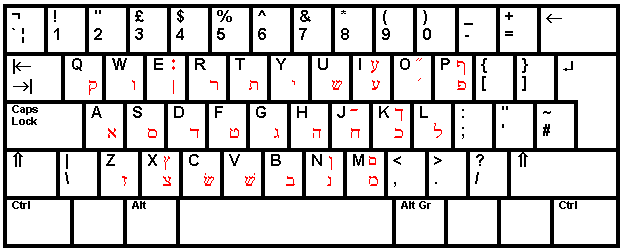
The diagram above shows the layout on a British QWERTY keyboard. On AZERTY and QWERTZ keyboards transliterations are changed along with the positions of the keys, with the normal punctuation keys and top row of each national keyboard. Note the punctuation marks on the E and O keys.
Israeli national layout
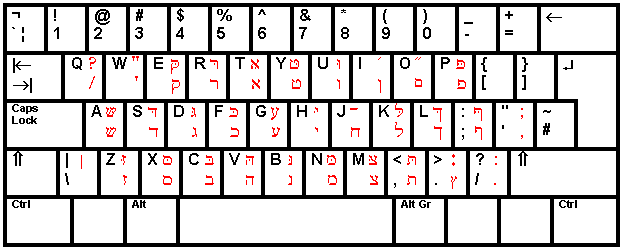
This layout matches the Israeli Hebrew layout except that a few liberties have been taken with the layout to fit in classical Hebrew punctuation marks.
Shifted letter keys produce final forms of the letters where these exist, or otherwise consonants with dagesh where these exist. Since the letter het (on J) does not normally take a dagesh, maqaf has been put on Shift-J.
In both these layouts, if you have chosen the usual option of using the keypad to provide vowels and accents, the top row of the keyboard remains the same as the top row of your normal keyboard.
Hebrew vowels and accents
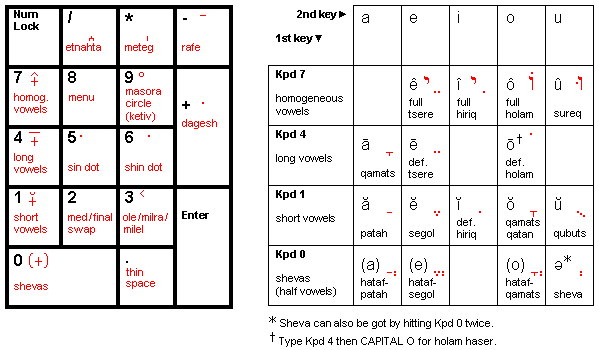
By default, Antioch uses the keypad to put vowels and accents on Hebrew letters; some common marks and accents are available directly from the keypad, others can be got from the menu that appears when you hit Keypad 8. NumLock must be turned on to make the keypad system work. You can choose to have it switched on automatically when you load the Hebrew keyboard: use the ‘Preferences -- Keyboard’ menu.
You can also use this menu to transfer the vowel and accent keys to the top (numeral) row of the keyboard instead of the keypad -- see below.
Type vowel points and accents after their consonants. In the standard arrangement shown above, each vowel point needs two keystrokes: first one of the keypad keys to select the type of vowel, then a letter key, as shown in the table. If a consonant has both a vowel point and an accent or accents, these can be added in any order.
Keypad 2 switches between the medial and final form of the consonant to the right of the cursor.
Keypad 8 produces a full menu of vowels, cantillation marks and extra characters. These are on three sub-menus. The last sub-menu you used will be remembered, and will come up on top next time you call up the menu. Normally, when you make a choice from the menu, it disappears. If you want to add several marks, hold down Ctrl to retain the menu for as long as you want. You can type letters in the document while the menu is on the screen, but you must hold down Ctrl while typing them.

|
Из за большого объема этот материал размещен на нескольких страницах:
1 2 3 4 |
