

Партнерка на США и Канаду по недвижимости, выплаты в крипто
- 30% recurring commission
- Выплаты в USDT
- Вывод каждую неделю
- Комиссия до 5 лет за каждого referral
ANTIOCH 2 USER’S MANUAL
Unicode* classical Greek and Hebrew for Word
Words marked with an asterisk* are defined in the Glossary at the end of this manual.
Contents
Installing Antioch 2
Setting up Antioch 2
The Vusillus font and other changes 3
Shortcut keys 4
Typing Greek 4
Greek diacritics, extra characters and Coptic letters 5
Setting up the keyboard 7
Mapping the keyboard by hand 7
Acute and tonos 8
Finding Greek words 8
Language setting and spelling checking 9
Smart quotes 9
Choice of font 9
Converting Greek documents 10
Older Greek formats 10
Conversion of older files to Unicode when opened 11
‘Fast convert’ 13
RTF files 13
‘Rewrite bad coding’ -- the main converter 13
WordPerfect conversions 14
BetaCode conversions 15
Exporting documents 15
Converting Greek documents to older formats 15
Decomposing characters with diacritics 16
Converting to monotonic Greek 16
Sorting Greek lists into alphabetical order 17
Typing Hebrew 17
Hebrew vowels and accents 19
Menu and accent prefix 20
Unicode 5 changes to Hebrew 21
Hebrew typing order 21
Setting up the keyboard 23
Mapping the keyboard by hand 23
Finding Hebrew words 24
Language setting and spelling checking 24
Quotation marks 25
Choice of font 25
Registration 25
Sending Greek and Hebrew email with Outlook Express 26
Uninstalling Antioch 27
Extra features 27
AutoCorrect 27
Troubleshooting 28
Glossary 30
Installing Antioch
Simply run An2setup. exe by double-clicking on its icon. This will install everything you need.
As a final step, the Antioch installer needs to run a program contained in a document called An2setup. doc. If your computer is set to open. doc files with a word processor other than Microsoft Word , that word processor will probably be unable to run the program. In this case, close the word processor, start Microsoft Word and open An2setup. doc manually to complete the installation. You will find An2setup. doc in the folder C:\Program Files\Antioch.
The installer will ask you to reboot your computer at the end of the process.
If you have Adobe Type Manager (ATM)* on your computer, the font that Antioch has installed will normally be added to ATM’s list of fonts when you reboot the computer at the end of the installation process. If you find that the Vusillus font is unavailable, please see the entry for ‘ATM’ in the Glossary.
Setting up Antioch

Start Word. If your computer is set up to use several national keyboards, leave it as it normally is -- don’t try to change to a Greek or Hebrew keyboard, now or at any time when using Antioch.
The screen will now have two small command bars* on it marked ‘Greek’ and ‘Hebrew’, which in Word (but not 2007) will probably be on an extra grey bar under the main toolbars. Click on the two small vertical bars at the left side of each bar and drag it to an empty spot on one of the main toolbars. When both bars have been moved up, the extra grey bar will disappear. The bars will stay where you put them next time you use Word. If you want to use only one of these languages, you can hide the bar for the other by using Word’s View/Toolbars menu -- but do not delete the bar or drag it off the screen.
In Word 2007 the command bars appear on the ‘Add-ins’ tab, and there is nothing to be gained by moving them from here.
Before you can use Antioch, you need to select a keyboard layout for both languages, in two separate operations. Switch on the Greek or Hebrew keyboard by clicking on the ‘alpha’ or ‘alef’ button. Click on the words ‘Greek’ or ‘Hebrew’ on the bar, and select ‘Preferences’ and then ‘Keyboard’. If you are updating from any previous version of Antioch, you can now recover your original Greek keyboard layout by clicking on the ‘Load’ button. But when setting up this version of Antioch for the first time, you should set up the keyboard from scratch as described below, as there have been some minor changes to it.
Otherwise, you need to select a layout from the options on offer. Antioch offers two layouts each for Greek and Hebrew, which adapt themselves to your own national keyboard layout. The most used layouts are similar to those of the old ‘WinGreek’* keyboards, which will suit most people who are used to typing in roman letters. Greek users will prefer the alternative modern Greek layout, and people who have used an Israeli keyboard for Hebrew may like to use the modern Hebrew layout.
Please click on a button for each of the four keyboard areas, even if you don’t want to change them. This is how Antioch learns about the layout of your national keyboard.
If you have a standard desktop keyboard, the usual preferences for both languages are:
Auto fill -- letters WinGreek
Auto fill -- symbols Symbols
Auto fill -- 1st row num keys Numerals
Auto fill -- keypad Diacritics
You should check the box marked ‘Switch NumLock on’, because the keypad will give the correct result only in NumLock is on.
If you have a laptop computer, you should choose:
Auto fill -- letters WinGreek
Auto fill -- symbols Symbols
Auto fill -- 1st row num keys Diacritics
Auto fill -- keypad Numerals
In this case, don’t check the ‘Switch NumLock on’ box.
The keyboard layout can be changed as you like: more about this below in the sections on Greek and Hebrew.
To switch on either keyboard, click on the ‘alpha’ or ‘alef’ button. The font will be changed to ‘Vusillus’, ready for you to type your chosen language.
The keyboard will load almost instantly. Users of networks where very little processing time is allotted to each terminal may find that the keyboard takes a couple of seconds to load.
Users of the unregistered trial version get only the italic version of the font. Also, a reminder notice appears from time to time encouraging you to register (see ‘Registration’ below). Registered users get the regular version of the font and free technical support. Your registration will remain valid for future versions of Antioch.
The Vusillus font and other changes
The font supplied with Antioch is called Vusillus, not Vusillus Old Face, so it can be installed without removing the previous version.
The Greek section of the font is almost exactly the same, except that it now has iota adscripts on capital vowels rather than subscripts, and that there are now two different forms of koppa. A few other standard Unicode symbols have been added, as asked for by users. In addition, the font’s Private Use Area contains a whole section of epsilons and omicrons with circumflexes, for the transcription of Athenian texts. These characters will also be found in all the free fonts distributed to Antioch users; the fonts are currently being updated to include them. Their places have been agreed with various Greek scholars, and it is possible that they will appear in some other future Greek fonts. Eventually, we hope, Unicode will adopt them -- but when they do, the characters will certainly be given different codes and we shall need to add a converter.
The Hebrew part of the font is new, and is designed for standard right-to-left Hebrew. It is possible to handle all cantillation marks properly. Thanks to the new OpenType* technology, the font will print even the trickiest passages of the Hebrew Bible, including the extra-complex BHS text.
The Hebrew characters in the font supplied with this version of Antioch have been updated to the Unicode* 5 standard, though the font remains compatible with Unicode 4 text. More details of the new standard are given below (see ‘Typing Hebrew’ and ‘Hebrew vowels and accents’).
The converter for BetaCode Hebrew has been omitted from this version of Antioch, since the Westminster Seminary is now publishing its source files in Unicode form.
Unicode 5 has also introduced an almost completely new system for Coptic, which is no longer combined with Greek and is therefore out of the range of Antioch. In due course we shall make some separate keyboard drivers for the new Coptic system, and these will be issued free.
Shortcut keys
Antioch’s Greek and Hebrew keyboards may be switched on and off with keystrokes rather than the usual buttons. The Greek and Hebrew search procedures can also be initiated with keystrokes. In order to do this:
In Word , click ‘Tools -- Customize’, then click the ‘Keyboard’ button. In the ‘Categories’ list, select ‘Macros’. The ‘Commands’ or ‘Macros’ list will show Antioch_Greek, Antioch_Hebrew, Antioch_Greek_Search, and Antioch_Hebrew_Search. Click on the name of a macro to select it.
In Word 2007, click the Microsoft Office button, then ‘Word Options’, then ‘Customize’. Next to Keyboard shortcuts, click Customize. In the ‘Categories’ list, click ‘Macros’. In the ‘Macros’ list, click the macro that you want to assign to a key, e. g. Antioch_Greek.
In both systems, in the ‘Press new shortcut key’ box, type the key combination that you want to choose. Check the ‘Current keys’ box to make sure that you aren't assigning a key combination that you already use to perform a different task. In the ‘Save changes in’ list, click ‘Normal. dot’ (Word ) or ‘Normal. dotm’ (Word 2007). Lastly, click ‘Close’.
Typing Greek
WinGreek* transliterating keyboard
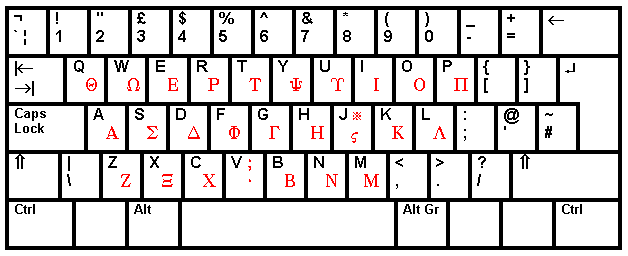
The diagram above shows the layout on a British QWERTY keyboard. On an AZERTY keyboard, the top row begins ΑΖΕΡΤΥ, on a QWERTZ keyboard it begins ΘΩΕΡΤΖ, and so on, with the normal punctuation keys and top row of each national keyboard.
Greek national keyboard
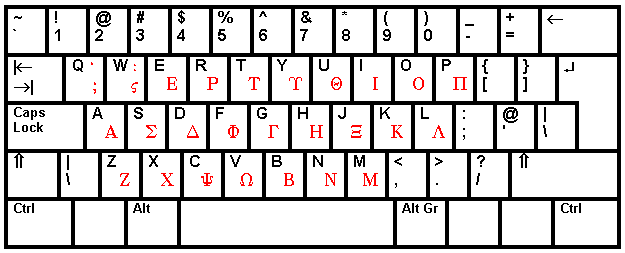
The layout shown above is suitable for Greek users who have a keyboard marked in Greek, but is not too far from the QWERTY layout to be used with this. The only divergences from the standard Greek keyboard are that a single-dot ano teleia has been substituted for the modern Greek two-dot colon normally on Shift-Q, and that the two-dot colon is now on Shift-W -- the standard Greek keyboard has a spare capital Sigma here. The keypad remains the same as in the WinGreek layout when using this keyboard, although this means that Windows Greek keyboard users now have two sets of keys for tonos and dieresis.
Both Greek keyboards have separate keys for medial and final sigma, but automatic sigma can be enabled with the ‘Preferences -- Keyboard’ menu. This also allows the automatic insertion of a curled medial beta in the appropriate places, as preferred by French users.
Greek diacritics, extra characters and Coptic letters
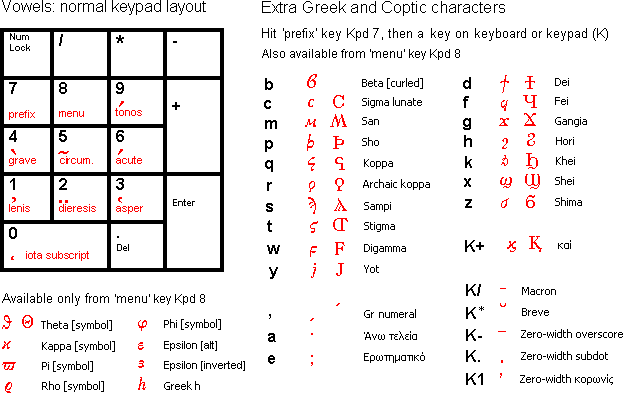
When set up for a full-size keyboard, Antioch uses the keypad to put diacritics on Greek letters. NumLock must be turned on to make this work. You can choose to have it switched on automatically when you load the Greek keyboard: use the ‘Preferences -- Keyboard’ menu. You can also use this menu to put the diacritic keys on the top (numeral) row of the keyboard instead of on the keypad, as required for laptop computers -- see below.
By default, diacritics are typed after vowels (though this order can be reversed with the ‘Keyboard’ menu). Thus, to type omega with asper, circumflex and iota subscript, you first hit the letter key for omega and then, in any order, the three keys for each of the marks. As you hit each of these, that diacritic will be visibly added to the letter.
If you make a mistake, you can change any of the diacritics individually without affecting the others. For example, if you want lenis instead of asper, just hit the key for lenis. If you want to remove the asper entirely, hit the asper key again. Diacritics can be modified at any time by placing the cursor after the letter you want to change.
You can also type diacritics on an initial vowel before typing the vowel -- you may find this easier when adding diacritics to initial capitals. Once you have added the vowel, you can change the diacritics as long as the cursor is to the right of the vowel.
People who are used to the Windows modern Greek system of typing the diacritic before the vowel can choose this arrangement with the ‘Keyboard’ menu. In this case the diacritic(s) will appear on screen before the letter. You can alter them as above until you type the letter, but after you have typed the letter you can’t go back and alter the diacritics. You have to delete the letter and start again.
In either arrangement, the iota subscript key (Kpd 0) can be struck only after the vowel.
The prefix key (Kpd 7) can be followed by letter keys to bring up extra Greek and Coptic letters not provided by the main keyboard, as shown in the table above. These letters can also be got from the menu (Kpd 8). The keys for koronis, length marks and underdot must all be struck after typing the letter they belong to, even when Antioch is set to ‘vowels first’. The macron (Kpd /) should be distinguished from the high overscore (Kpd -). The former is a normal macron. If you apply it to alpha, iota or upsilon, you will get a one-piece vowel-with-macron symbol. If you put it on any other letter, you will get a separate zero-width macron. The same applies to the breve.
For compatibility with older text, this keyboard layout still includes the ‘non-Greek’ Coptic letters, which were added to the Greek ones in the obsolete Coptic system -- though the bulk of the alphabet has now moved elsewhere and is no longer supported by Antioch. The high overscore (Kpd -) is intended for placing on Coptic letters only; it is high enough to go over capitals. Although this symbol indicates a vowel preceding the consonant it stands over, it still has to be typed after the letter.
Setting up the keyboard
The keyboard can be changed in almost any way you like. To start you off, we have preset it to the most widely used setting: the WinGreek layout with diacritics available from the keypad.
Remember that you have to switch on the Antioch keyboard before you can select ‘Preferences -- Keyboard’ from the menu.
The ‘Preferences -- Keyboard’ dialog has four rows of buttons. Each row relates to a section of the keyboard. ‘Letters’ can be set to the WinGreek or Greek national layout by clicking a button. If you don’t want either, you can select the one most like your preferred layout and modify it later. Or you can click on ‘Clear All’ to remove all assignments for letter keys, and make your own layout from scratch. Take care -- this is quite laborious.
‘Symbols’ deals with the keys which are neither letters nor numbers. Click on ‘Symbols’ to give the standard US meanings to these keys. You may want to modify this later, especially if you have a non-US keyboard. ‘Clear All’ removes all assignments for these keys.
‘1st row num keys’ can be set to give diacritics. This arrangement will suit laptop users. The standard arrangement, which you can modify, is simply a number-for-number copy of the default keypad layout, as follows.
Key | 1 | 2 | 3 | 4 | 5 | 6 | 7 | 8 | 9 | 0 |
| lenis | dieresis | asper | grave | circumflex | acute | prefix | menu | tonos | iota subscript |
Mapping the first row prevents the number keys from producing numerals. However, you can still get these. To make the first row temporarily produce the usual characters, just press the ‘Pause’ (or ‘Break’) key. Press ‘Pause’ again to revert to the assignments you made.
‘Keypad’ affects the keypad keys only when NumLock is on. You can choose to have these keys produce diacritics, or numerals as usual. Either of these assignments can be modified later, and there is also a ‘Clear All’ button.
When you have the keyboard laid out to your satisfaction, click on ‘OK’. To cancel all the changes you have just made, click on ‘Cancel’. Remember that if you make a mess of things the first time you use this procedure, you can restore any part of the keyboard to a standard layout with the appropriate button in the top half of the dialog box.
Changes usually take effect immediately. If for some reason they do not, shut down Word and reboot the computer.
Mapping the keyboard by hand
The lower half of the dialog box allows you to assign any key to any character that might reasonably be used with Greek. In this way you can modify any of the standard layouts, or create your own.
To assign a character to a key, first scroll down to the name of the key in the left column of the left window and click on the name to select that key. Note that the list includes keys used with Alt and with Alt-Shift. The character at present assigned to that key appears on the right of the key name in the same window. If only the key name appears, that key is unassigned and will not work. Then select a character from the list in the right window. Click on ‘Map’ to assign this character to the key.
To delete a key assignment, select the key name in the left window and click on ‘Clear’. That key will become unassigned. Normally you will want to assign another symbol to it at once. You can also click on ‘Clear all’ to delete all key assignments -- but then you will have to remake the entire keyboard layout.
There is also a checkbox to force NumLock on when the Greek keyboard is selected, which is useful for people using full-size keyboards who normally work with NumLock off. Users of laptops or short keyboards should not check this box, of course.
If you are in the process of remapping the keyboard and you think you have made a mistake in the new settings, clicking on the ‘Load’ button will reload your original settings from the computer’s registry. Note, though, that the old settings will be permanently overwritten when you click on the ‘OK’ key.
Owing to the differences between national keyboard layouts, some ‘symbol’ keys may appear twice in the list. You can map either entry.
Users of non-US/UK keyboards may need to make several changes to the standard layout to get everything working perfectly. Note, however, that Antioch cannot assign a character to a key which, in the national layout you are using, is already a prefix key for producing accents on various letters.
If you need to type any characters that are not in the list, you can add them with Word’s ‘Insert -- Symbol’ menu, which allows you to assign any symbol to any keystroke.
If you wish the normal beta key to automatically insert a non-initial (curled) beta when the cursor is not located at the beginning of a word, check the appropriate box.
If you want final sigma to be put automatically at the end of words when you type s, check the appropriate box. You can still type j, or whatever other key you have chosen for final sigma.
Acute and tonos
Until late 2004, Unicode classical Greek text used separate characters for vowels with the classical acute accent from vowels with the modern Greek tonos. It is now proposed to change this: acute and tonos are considered to be the same accent, and the modern Greek codes are to be used for these classical accented letters: all seven capital vowels with acute/tonos only, all seven lower-case vowels with acute/tonos only, lower-case iota with dieresis and acute/tonos, and lower-case upsilon with dieresis and acute/binations of breathings with acute are unchanged. The TLG web site already gives Unicode text in this style, and Apple are converting to it. But at present all other Unicode classical Greek text on the web, and all existing documents, use the old style, and this is likely to last for some time.
Antioch can use either style for typing, and can convert documents in one style to the other. To change typing style, go to Greek -- Preferences -- Text and check or uncheck the box marked ‘Use modern Greek tonos instead of acute accent.’ To convert a document in one style to the other style, go to Greek -- Text re-encoders. To convert an old-style document to the new style, select ‘Code acute as tonos’. To convert a new-style document to the old style, select ‘Code tonos as acute’.
Finding Greek words
Click on Greek -- Search.
Word does not allow the typing of ancient Greek in its built-in ‘search’ or ‘search and replace’ dialog boxes. In order to allow you to perform search and replace operations as easily as possible, Antioch provides an additional dialog box. You may either use it to fill Word’s built-in dialog boxes or to directly
perform a simple search for a word or an expression. Filling Word’s built-in dialog boxes allows you to make full use of Word’s advanced searching parameters.
In addition to this, Antioch’s additional dialog box optionally allows you to search for words without typing their diacritics. To do this, it replaces lowercase unaccented vowels by complex wildcards, which will match any accented or unaccented lowercase or uppercase vowel of the same kind. When using this feature, keep in mind, however, that Word does not allow searching for a string whose length would exceed 255 characters. Since wildcards contain many characters, this typically limits the search to one or two words.
Language setting and spelling checking
No classical Greek dictionary file for Word exists at present, which means that no spelling checking can be done on Greek text.
By default, Antioch treats Greek text as being in Greek -- that is, modern Greek -- but turns spelling checking off. This is the most sensible setting for people who don’t have a modern Greek spelling checker.
Both these settings can be changed with ‘Greek -- Preferences -- Text’.
In all cases, text in roman letters is checked with the appropriate dictionary.
If you are using Antioch to type modern Greek, and you have a modern Greek spellchecker, click on ‘Greek -- Preferences -- Text’, select ‘Greek’ in the lower window, and uncheck the ‘Disable proofing tools’ checkbox. Remember to recheck the checkbox before typing any classical Greek, or the modern checker will mark it as wrong.
Normally both the ‘When activating’ and ‘When typing’ boxes should be checked. This will cause Antioch to change the spellchecker status both when you select the Greek keyboard and when you type a Greek letter.
Smart quotes
When you are using the Greek keyboard, ‘smart quotes’ will always be those of the country the main computer system is set to, even if you use Windows to change national keyboards. Thus a US computer will always give English-style smart quotes, and will not switch to guillemets if you choose a Greek national keyboard.

|
Из за большого объема этот материал размещен на нескольких страницах:
1 2 3 4 |
