


Партнерка на США и Канаду по недвижимости, выплаты в крипто
- 30% recurring commission
- Выплаты в USDT
- Вывод каждую неделю
- Комиссия до 5 лет за каждого referral
4. " Code value " - for a output of code or physical meanings of analog parameters
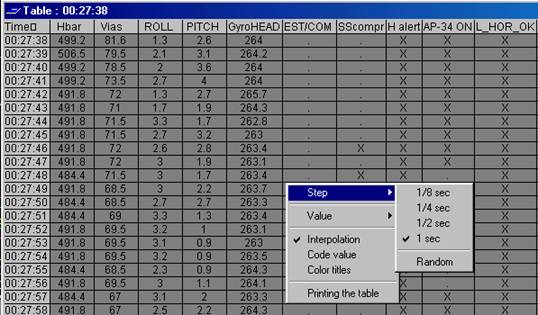
Figure 27.
5.5. Printing the table
To print the table press the button  of the Speed bar or choose the item " Printing the table " in the contextual - dependent menu. There will be a dialogue of a choice of time of a beginning and ending of an interval for printing the table (Figure 28).
Figure 28.
By default the time is established according to an interval displayed in a window of the diagrams, the frequency of an output corresponds to the current step of the table. After a choosing of the time required borders press «OK».
In the appeared window of set-up of the printer press the button «OK» after set-up of the printer.
The express - analysis of the flight information
For processing flight by the module of the express - analysis press the button  of the Speed bar. For the each flight file the in system is stipulated a file with results of the express - analysis, which is made with its realization. If the express - analysis was already carried out, on the screen the dialogue window with inquiry (Figure 29) will appear.
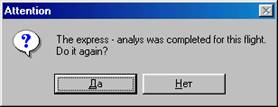
Figure 29. Inquiry to repeated realization of the express - analysis
If to press the button «Yes» the program will execute the express train - analysis of the information of flight. If to press the button "No", the data of the previous express - analysis will appear.
The algorithms using with realization of the express - analysis are given in the supplement. During realization of the express - analysis the cursor takes the form of a sand-glass and the system becomes engaged, therefore temporarily Windows will not respond on actions of the user (except for a movement of the cursor of the mouse), that is explained by features of OS Windows.
If the express - analysis was finished successfully, on in a main window of the program will appear the one more window of results of the express - analysis (Figure 30).
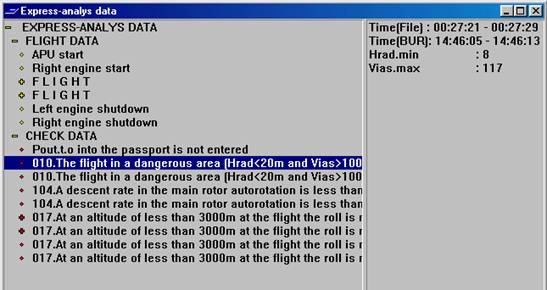
Figure 30. A window of results of the express - analysis
6.1. Viewing results of the express - analysis, estimation of reliability of the revealed events
The results of the express - analysis are represented as a tree containing units or individual events (further - simple of event). The output of a tree is carried out to the list located in the left part of a window of results of the express - analysis. The units differ from events only by that can contain other units and (or) event (so-called descendants ). A root of this tree is the unit « EXPRESS-ANALYSIS DATA». In it there are two descendants - « Regular messages » and « Events of the infringements », each of which also is a unit. The unit has a mark (descendants of the unit are seen below - under it and with indentation to hide them, it is enough to press this mark) or (descendants of the given unit are hidden and with pressing this mark they will be displayed). The event will have the mark displayed. With a choice of event or unit by the cursor of the mouse it is highlighted and in a right window is made the information, accompanying it, (Figure 30).
If the whole list is not located in a window, with the help of scroll bar, arising with it, it is possible to overlook any part of the list.
The infringements are located in the separate unit « Events of the revealed infringements », where are ordered by the time of their appearance and also have treelike structure (for example, the same infringements going are in succession taken out in separate unit).
For confirmation of any event it is possible to cause in a window of the diagrams specially picked up set of parameters with marking by markers of an interval (if event - time interval) or point (if event - dot). For it it is enough to make double click by the left button of the mouse above the text of the chosen event. It in the appeared window of the diagrams the chosen event will be illustrated.
If the operator disagrees with any of the events, he has an opportunity to put the appropriate label to the left of the event, which will be displayed as a mark. For turn on/turn off of a label from the current unit there are appropriate commands in the contextual - dependent menu of a window of results of the express - analysis (the left part).
6.2. To print the results of the express - analysis
To print the results of the express - analysis press the button of the Speed bar. In the appeared window of set-up of the printer press the button «OK» after set-up of the printer.
The output of results of the express - analysis is carried out in the completely in the unwrapped way, as though all existing units were opened. The meanings for each unit or event are carried out directly under it with the appropriate mark.

|
Из за большого объема этот материал размещен на нескольких страницах:
1 2 3 4 5 |
